

Content per schedule
One banner at a time. Each banner you schedule has its own Start date and End date, and the block shows the one that’s live now. See When content goes live.What you schedule in Block Hero
On the block’s page, click Schedule content. The Schedule Image Banner content form has these fields. Content Name and Desktop Image are required.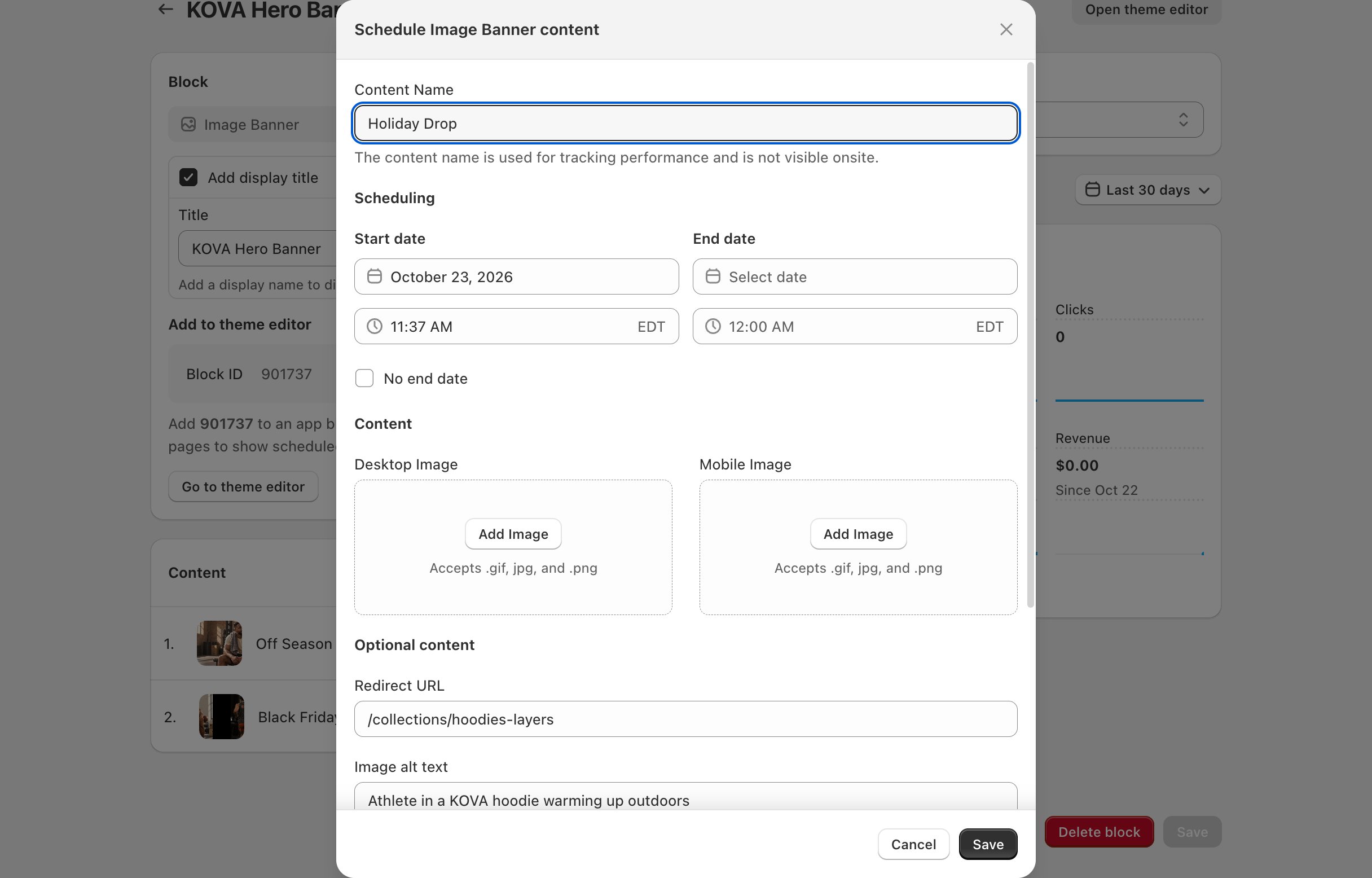
What you set in the theme editor
These settings are on the block in the theme editor. They stay the same whatever you schedule.If a banner has no Heading, Subheading, Button Label or Secondary Button Label, and its desktop image is at least three times as wide as it is tall, the banner shows the whole image instead of using Banner height.
Related
Add a block to your theme
Copy the Block ID and add the block in the theme editor.
Create a schedule
Choose what the banner shows and when.