

Pick a date range
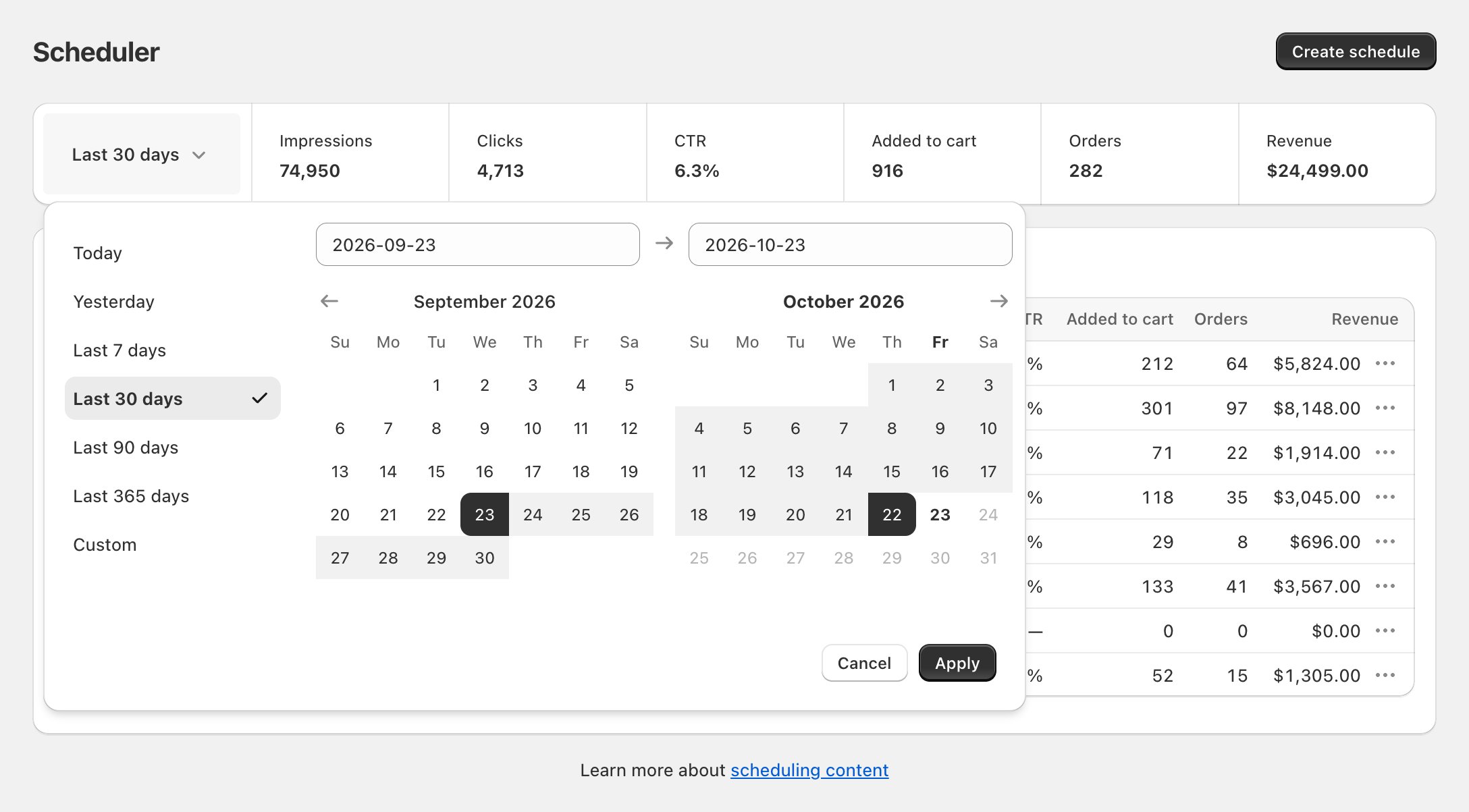
The Scheduler page and the block page each have a date picker. Click it to choose a range.1
Open the date picker
Click the current range, for example Last 30 days.
2
Choose a range
Pick Today, Yesterday, Last 7 days, Last 30 days, Last 90 days or Last 365 days. To pick your own dates, choose Custom or click a start and end date in the calendar.
3
Apply it
Click Apply. Click Cancel to keep the range you had.
Example data
The Scheduler page
Go to Scheduler. Above the table, the metrics bar shows totals for the range you picked: Impressions, Clicks, CTR, Added to cart, Orders and Revenue. The Content during period table has one row per block, with these columns: Block, Content schedules, Impressions, Clicks, CTR, Added to cart, Orders and Revenue.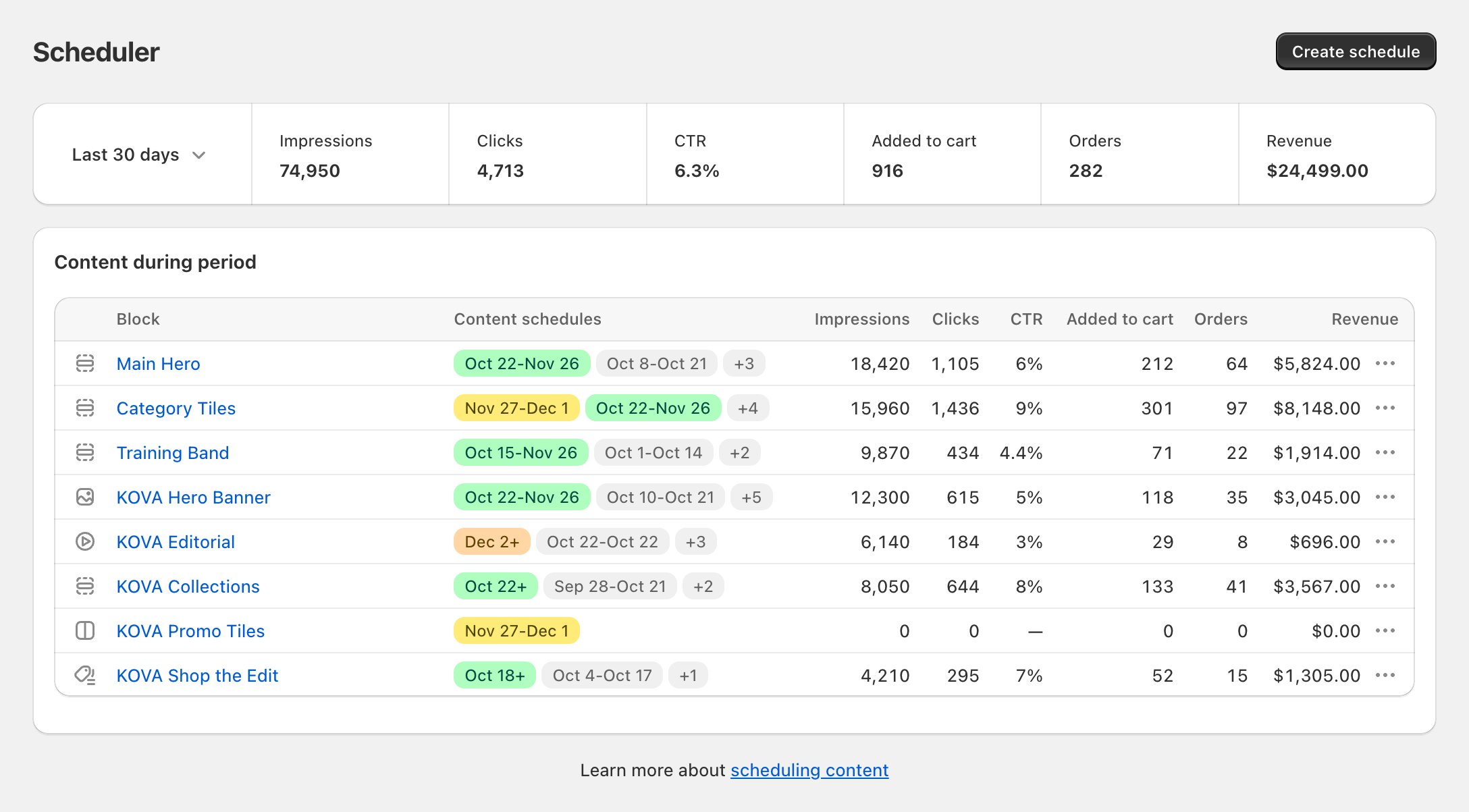
Example data
- Click a block’s name to open its block page.
- Click anywhere else on the row to open Content during period for that block, with its content listed under it.
Content during period
This page lists each block’s schedules, with each piece of content underneath. Open it by clicking a row on the Scheduler page.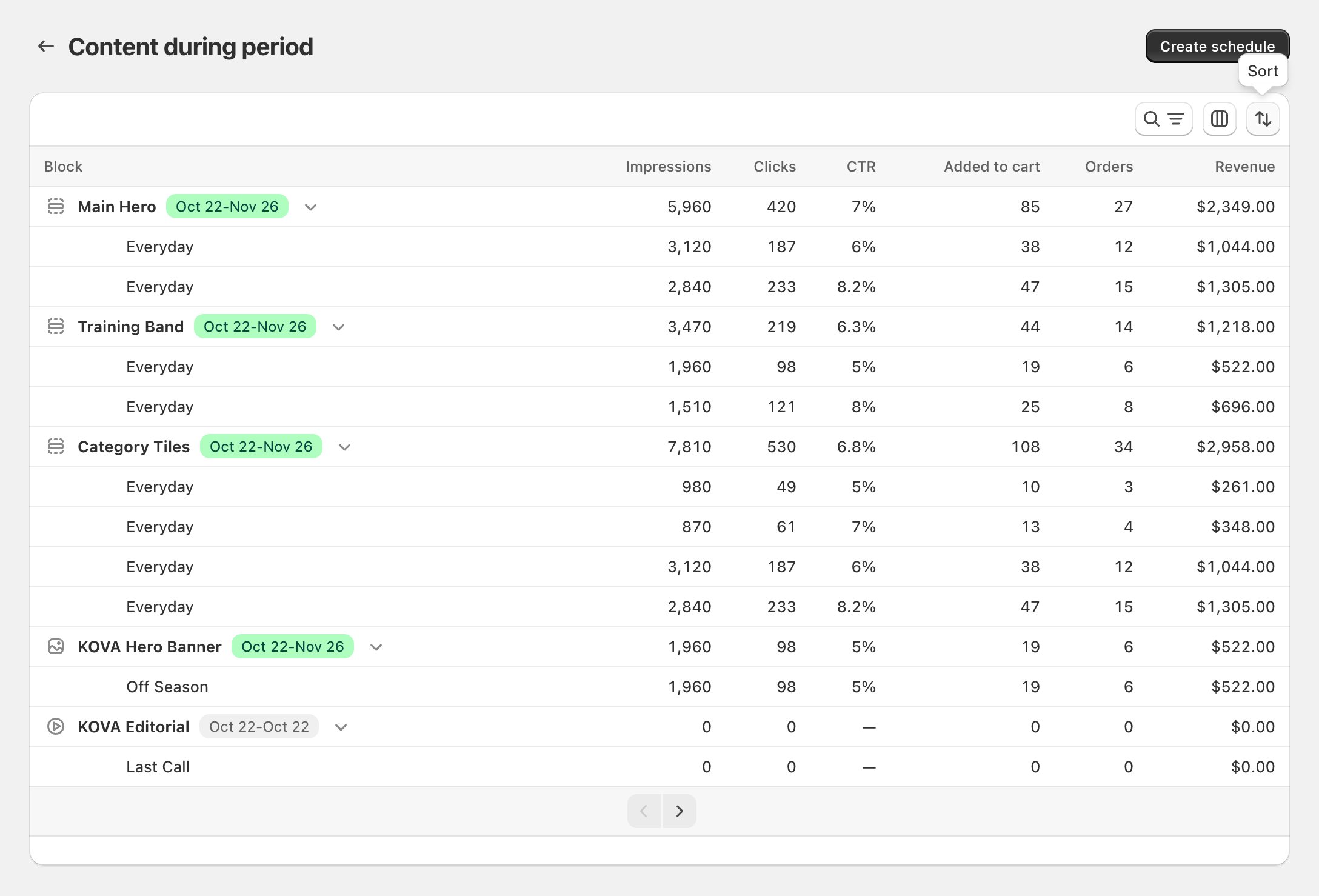
Example data
Find content
- Search: type in Searching all content to find a block, schedule or piece of content by name.
- Date Range: show only schedules that ran In the last week, In the last month, In the last 3 months or In the last year. With no date filter, the page shows every schedule and counts all results to date.
- Block: show one block. When you open the page from a row on the Scheduler page, that block shows as a tab next to All. Click All to see every block.
The Date Range filter on this page is separate from the date picker on the Scheduler page.
Sort
Click the sort button and choose Date (Newest first or Oldest first), Impressions, Clicks or CTR (Low to high or High to low). The page starts on Date, Newest first.Choose columns
Click the columns button. Tick the metrics you want under Engagement, Purchase intent and Revenue, or type in Search for columns. The table changes as you tick. Block is always shown. Block Hero remembers your columns in this browser.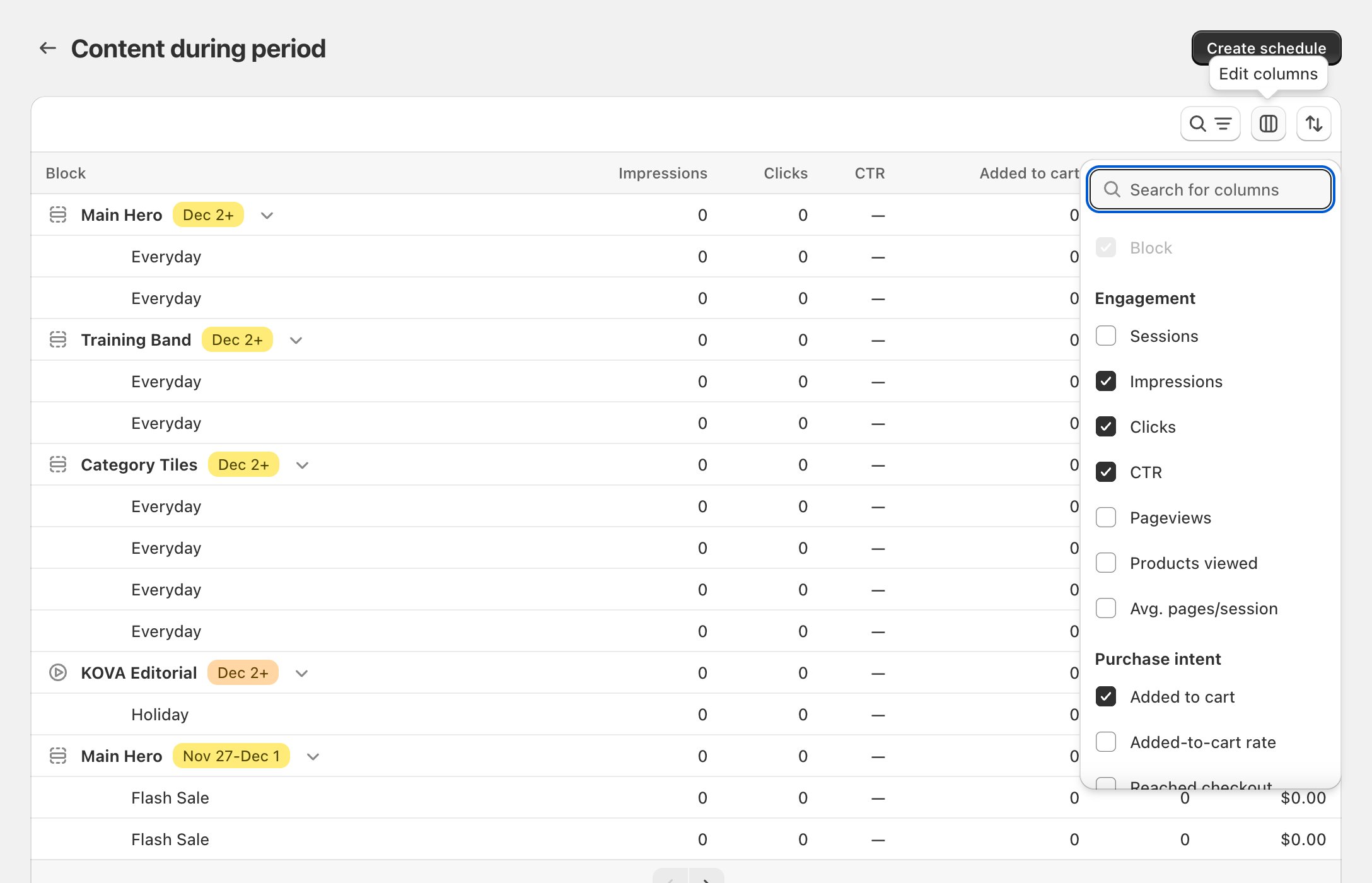
Read the rows
- Each block row shows the schedule’s dates as a badge, with totals for all its content.
- An info icon next to the badge means the schedule runs past the date range you filtered on. Hover to read: This content schedule extends beyond the selected date range. Analytics shown are only for the filtered period.
- Click the arrow on a block row to hide or show its content.
- Click a block row to open the block page. Click a content row to open that content’s page.
The block page
Open a block from the Scheduler. The right side of the page shows Analytics, with one date picker for every card under it.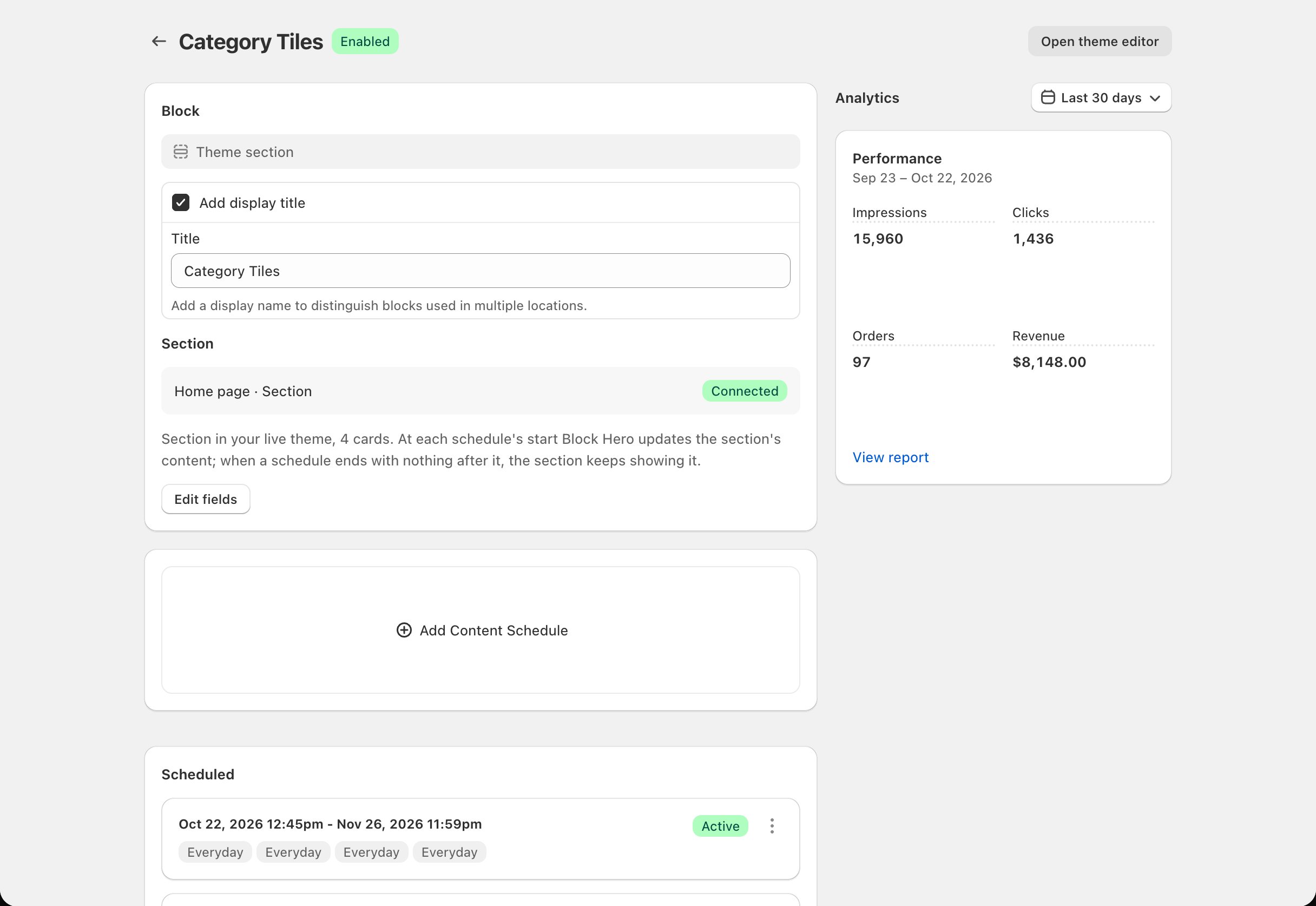
Example data
Performance
Shows Impressions, Clicks, Orders and Revenue for the dates you picked, each with a small trend line. Click View report for every metric.By schedule
Ranks the block’s schedules by clicks for the dates you picked. Each row shows the schedule’s dates, its status (Active, Scheduled or Inactive), its clicks and its CTR. Each schedule counts only its own dates inside the dates you picked.- The top five schedules are shown. When there are more, you see how many, for example Top 5 of 8.
- If the live schedule ranks lower, it is shown under the top five with Live now and its rank.
- If no schedule had views or clicks on those dates, you see No views or clicks on these dates.
View details
Click View details on By schedule to see every schedule in a table: Schedule, Status, Impressions, Clicks, CTR, Orders and Revenue, with a Total row. Click a column heading to sort.The report
Click View report on a Performance card. The report opens with a chart of Revenue.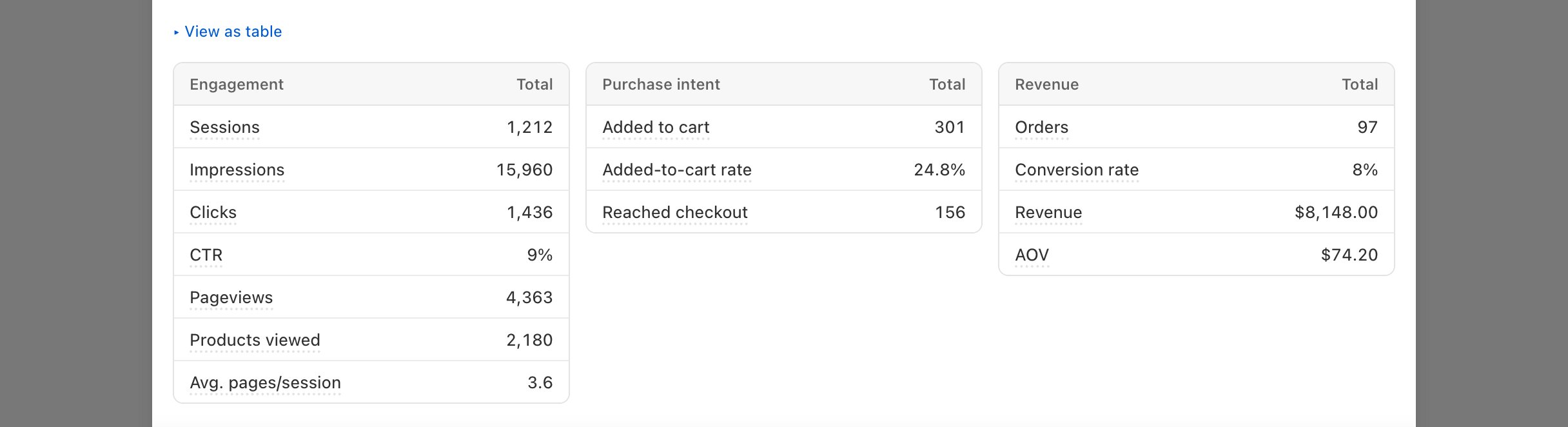
Example data
- Click the metric button to chart a different metric.
- Click View as table to see the chart’s numbers day by day, with a Total row.
- The Engagement, Purchase intent and Revenue tables show the total for every metric.
- On a block’s report, By content lists each piece of content with its schedule, Impressions, Clicks, CTR, Orders and Revenue. The content with the most revenue is first.
In By content, each piece of content’s totals cover all of its live dates. The chart and the group tables cover the dates you picked.
The content page
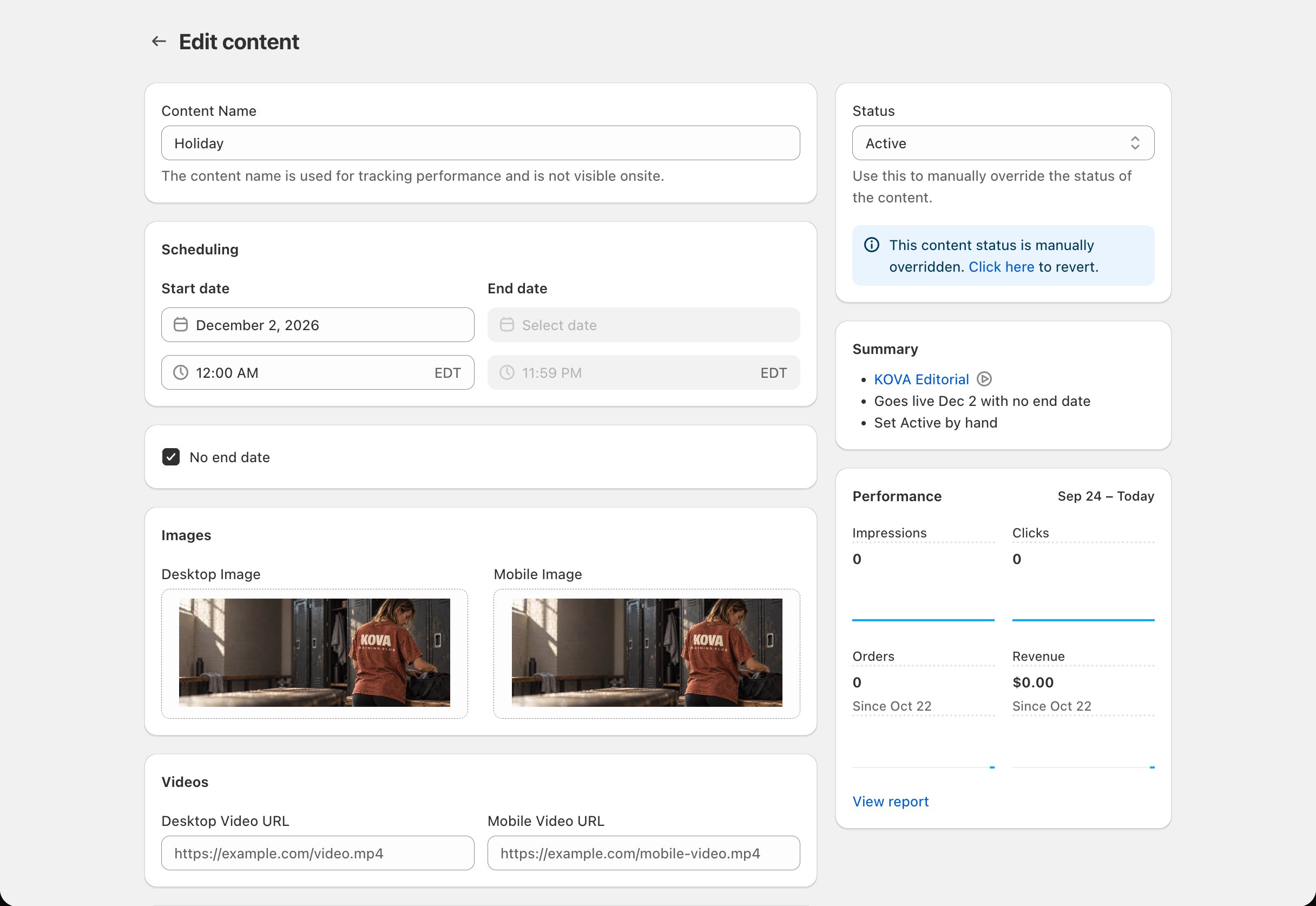
Open a piece of content from Content during period or from the block page. The right side of the page shows:- Summary: the block it belongs to, its live dates, whether it is before, within or after those dates (or set by hand), and how many items are in its schedule.
- Performance: Impressions, Clicks, Orders and Revenue up to today. The card shows the dates it covers: from the content’s earliest date, or the last 30 days if that is longer. There is no date picker here. Before the content goes live you see No data yet. Numbers appear once this content goes live on followed by its start date.
- In this schedule: every item in the same schedule, Ranked by revenue, with This item marking the one you are on. It shows when the schedule has more than one item.
Related
What each metric means
Definitions for every number.
When counting starts
Why some metrics show a dash or a start date.