

Scheduler
The Scheduler table lists your blocks with their schedules and results.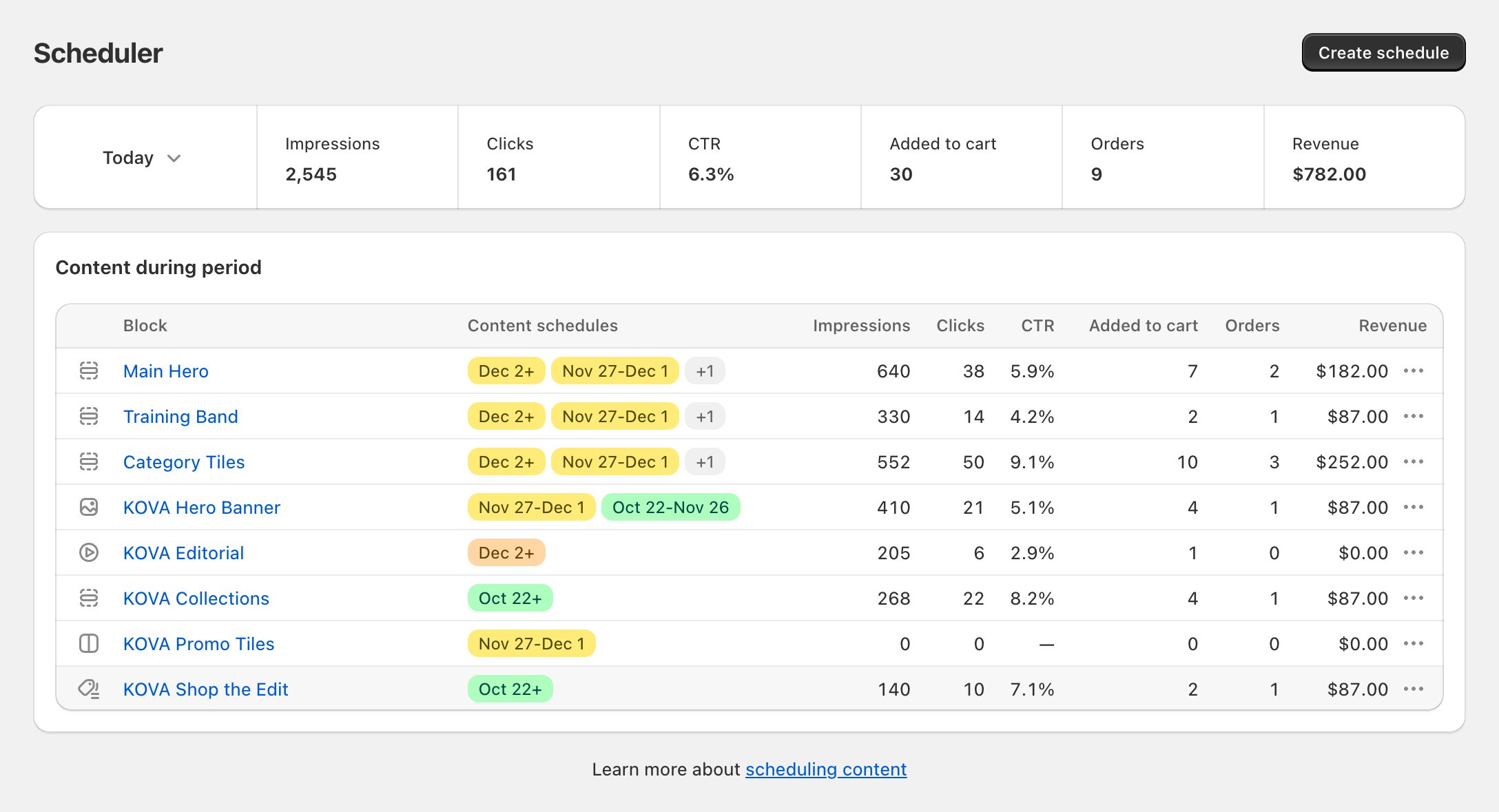
Example data
Block type icons
The first column shows an icon for each block’s type. Hover over it to see the type’s name.Date badges in Content schedules
Each badge is one schedule. It shows the dates in your store’s time zone:- Oct 1-Oct 14: starts Oct 1, ends Oct 14.
- Oct 1+: starts Oct 1 and has no end date.
Which badges show:
- Every schedule that overlaps the period picked at the top of the page.
- Every upcoming schedule, whatever the period. Last 30 days ends yesterday, so upcoming schedules would otherwise be hidden.
- Every live schedule, whatever the period, including one that started today.
- Every orange badge, whatever the period, because the status set by hand changes your store now.
Not published
Block page
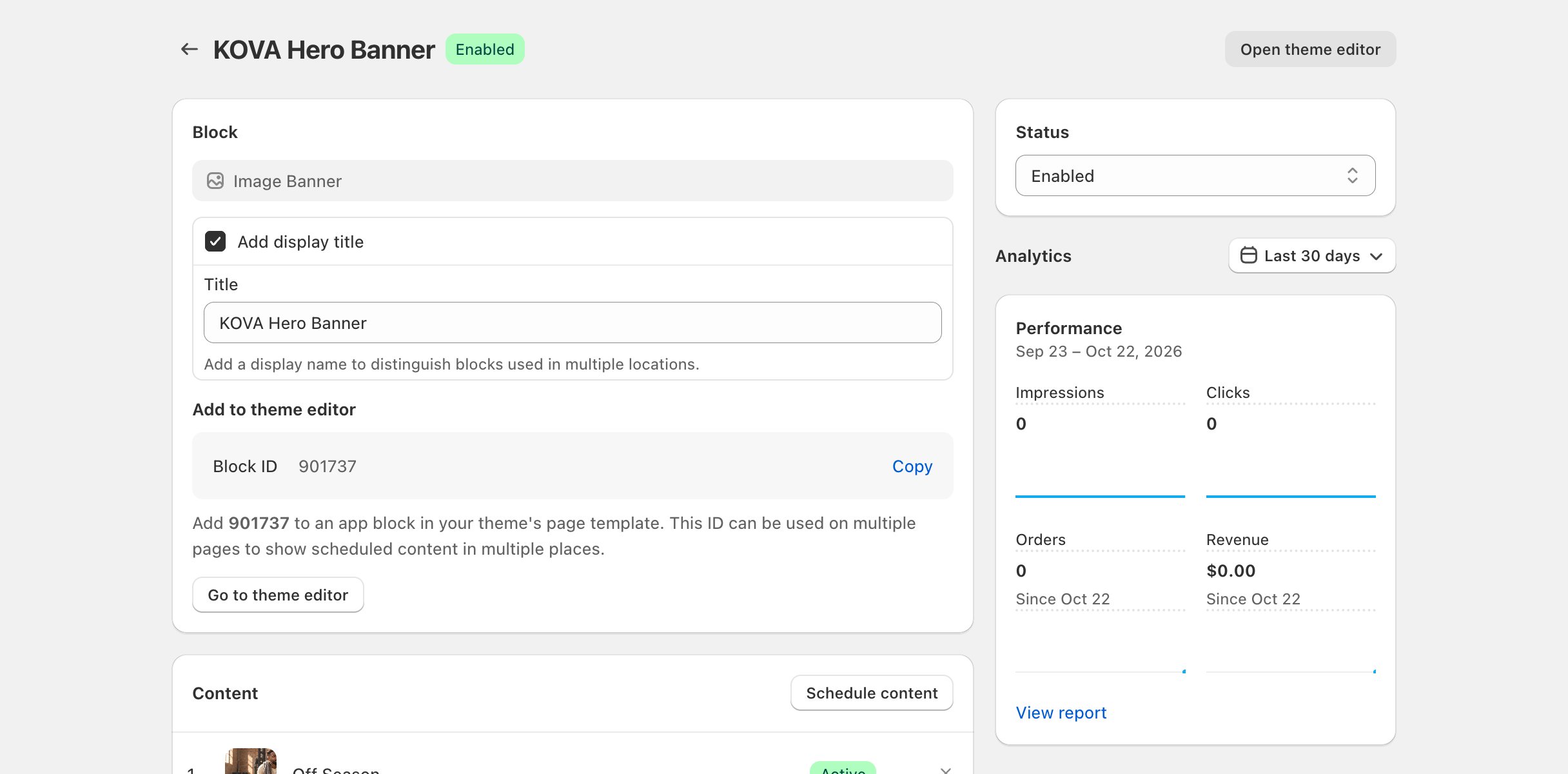
See Statuses for how Block Hero sets each status.
Banners on the block page
The Setup Guide
On a Block Hero block’s page, the Setup Guide shows your progress.
See The Setup Guide.
Content form
When you set a status by hand on a piece of content, a blue banner says This content status is manually overridden. Click Click here to go back to the dates, then save.
Content during period
Blocks page
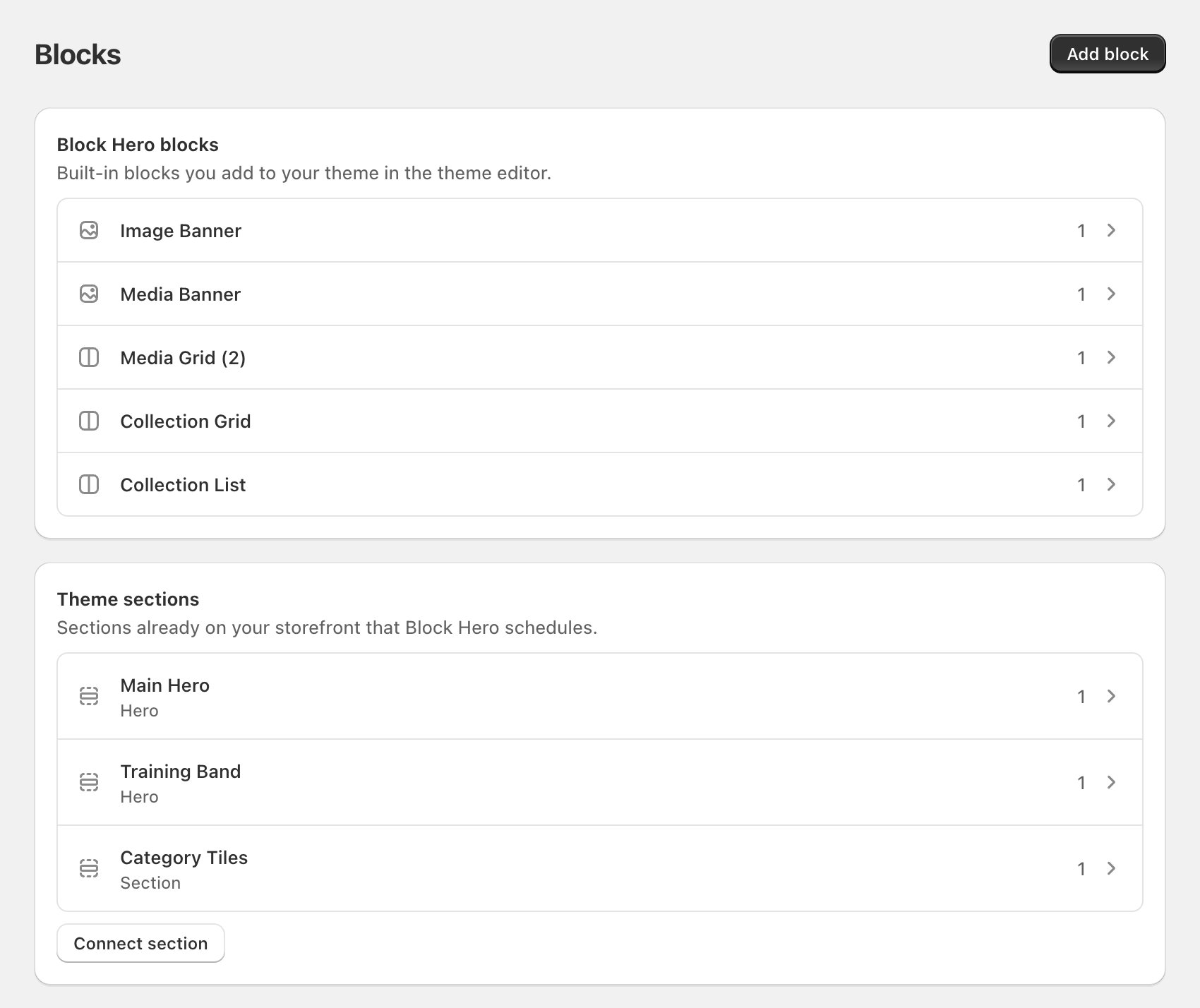
On a Block Hero block type’s page, the title shows a grey Block Hero block badge, and fields and theme settings are listed as grey badges. They’re labels only.
Theme section page
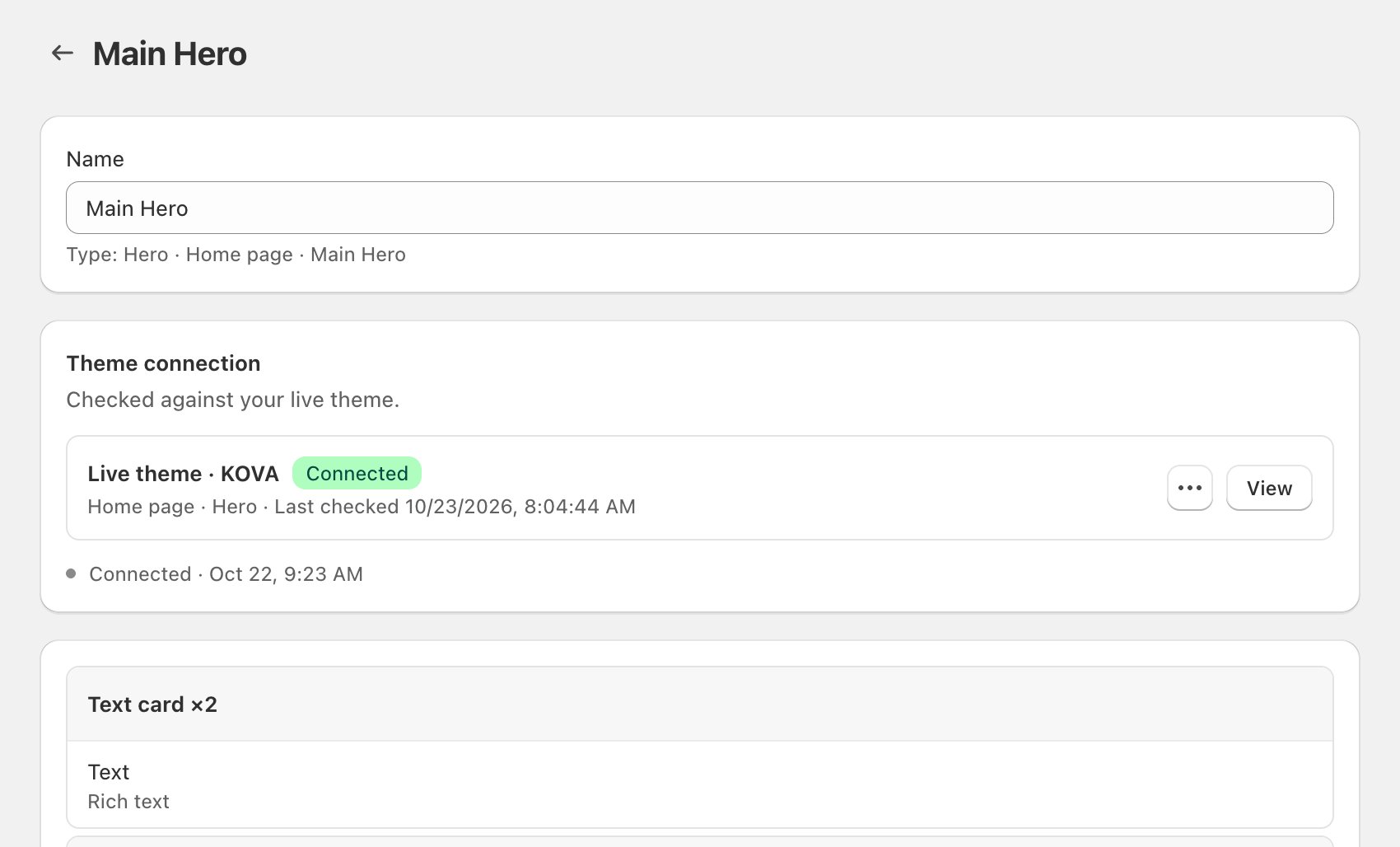
When you connect a section, the review step lists each field with a grey type badge, such as Image or Text. Settings under Stays in the theme editor show as grey badges too. They’re labels only.
Banners on the theme section page
Results and metrics
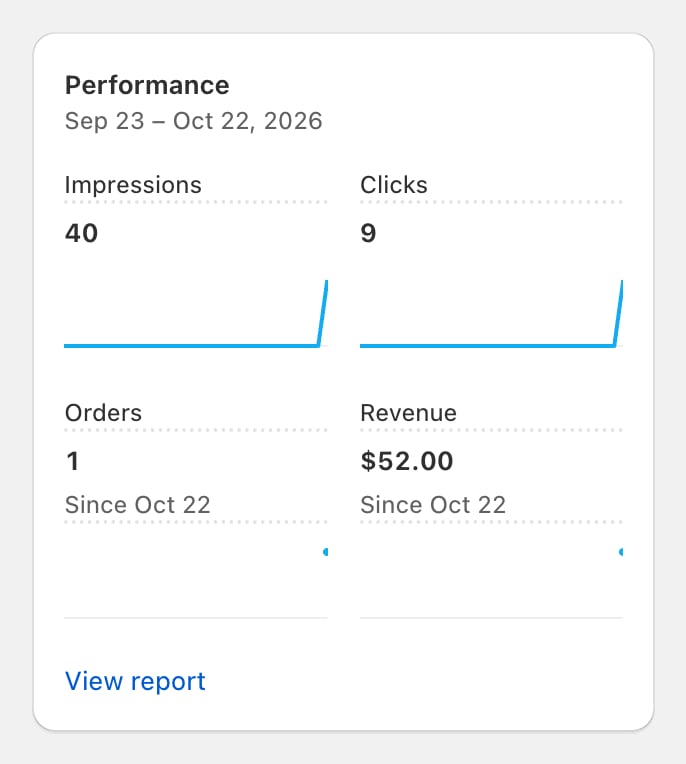
If analytics can’t load, a dash shows with Analytics are temporarily unavailable. Content is unaffected. on hover. Your schedules keep running.
Plans
See Subscription status.
Banner colours
Banners appear at the top of a page or card.Related
Glossary
What each term in Block Hero means.
Limits at a glance
Limits, time zones and timings.