

The Theme connection card
Open a section’s page from Blocks. The Theme connection card shows:- Live theme and your theme’s name.
- The status: Connected or Needs you.
- The page and section, and when it was Last checked.
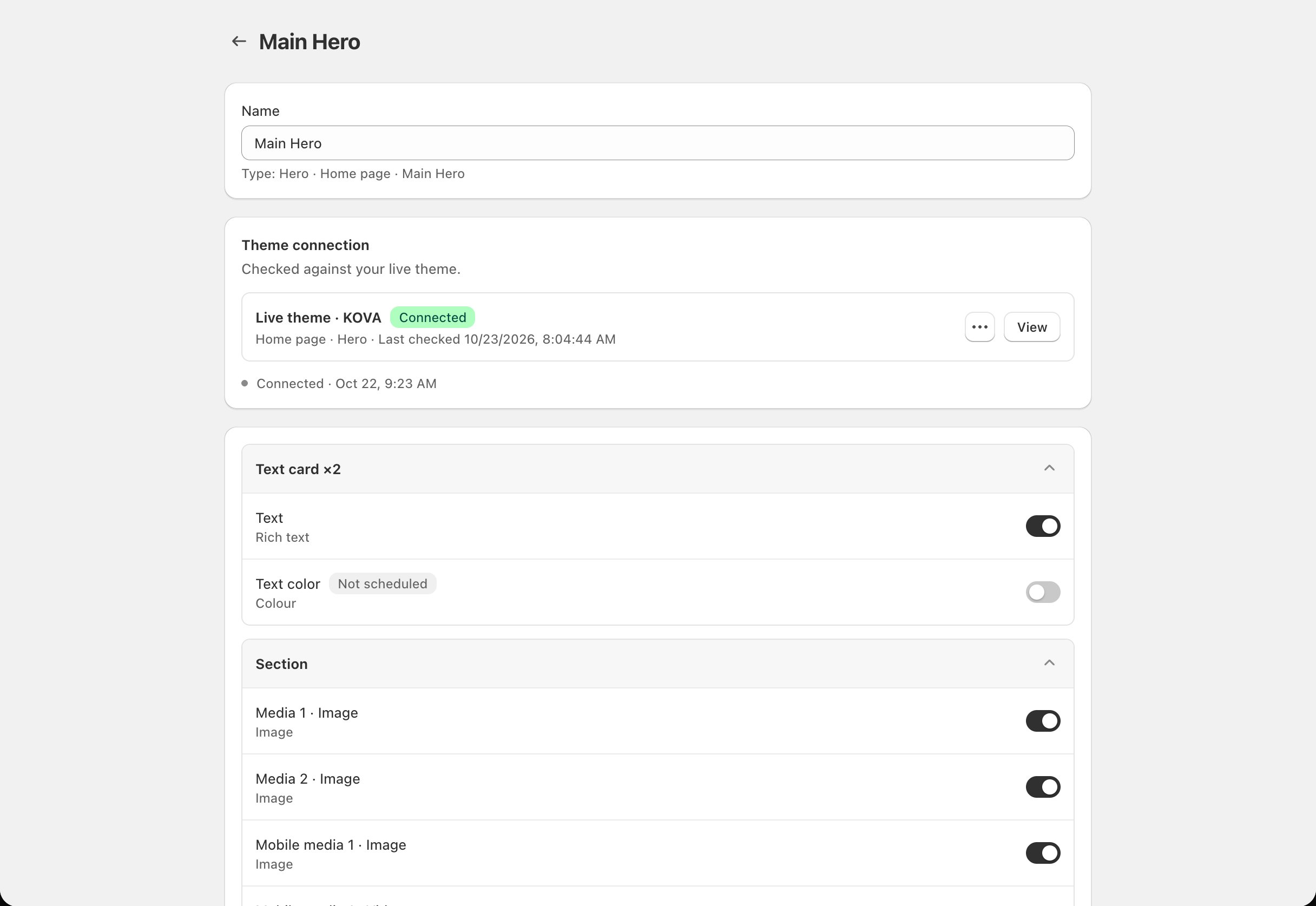
- Check connection: check the section against your live theme straight away.
- View in theme editor: open the section’s page in the theme editor.
If you publish a different theme
The connection follows your live theme. If the newly published theme still has the section with its links (for example, a copy of your old theme), it stays Connected. If not, it shows Needs you with the settings to link. Follow Link fields in the theme editor.What Needs you means and how to fix it
Finish in the theme editor
Finish in the theme editor
Some settings aren’t linked to Block Hero yet. This is normal right after you connect a section or switch on more fields. Follow Link fields in the theme editor, then click Check connection.
A theme update removed the section's links to Block Hero
A theme update removed the section's links to Block Hero
Something changed the section in your theme, such as a theme update or a save in the theme editor, and some settings lost their links. Since then, the section shows your theme’s values, not your schedule.Block Hero can’t tell whether this was on purpose, so it asks:
- Reconnect: takes you to Finish in the theme editor. Link the settings again, then click Check connection.
- Stop scheduling these fields: if you removed the links on purpose. Block Hero stops scheduling those fields and leaves the theme’s values alone. If every scheduled field lost its links, this opens Disconnect instead. See Disconnect a theme section.
This section is no longer on that page of your live theme.
This section is no longer on that page of your live theme.
The section was removed from its page, or your live theme doesn’t have it. Check the page in the theme editor, then click Check connection. If you removed the section on purpose, disconnect the block.
This section is connected to another Block Hero block on your live theme.
This section is connected to another Block Hero block on your live theme.
You connected the same section again as a new block, for example after publishing a new theme. One section can only belong to one block. Keep the block you want and disconnect the other.
The theme couldn't be checked. Try again in a moment.
The theme couldn't be checked. Try again in a moment.
Block Hero couldn’t read your theme just then. Wait a moment and click Check connection.