1

Click Create schedule

Go to Scheduler and click Create schedule. If you have no blocks yet, click Schedule block.
Scheduler home: the Create schedule button in the top right

Example data

2

Choose what to schedule

Under What do you want to schedule?, pick one:
  • Use a theme section: a section already on your storefront. Nothing to add to your theme.
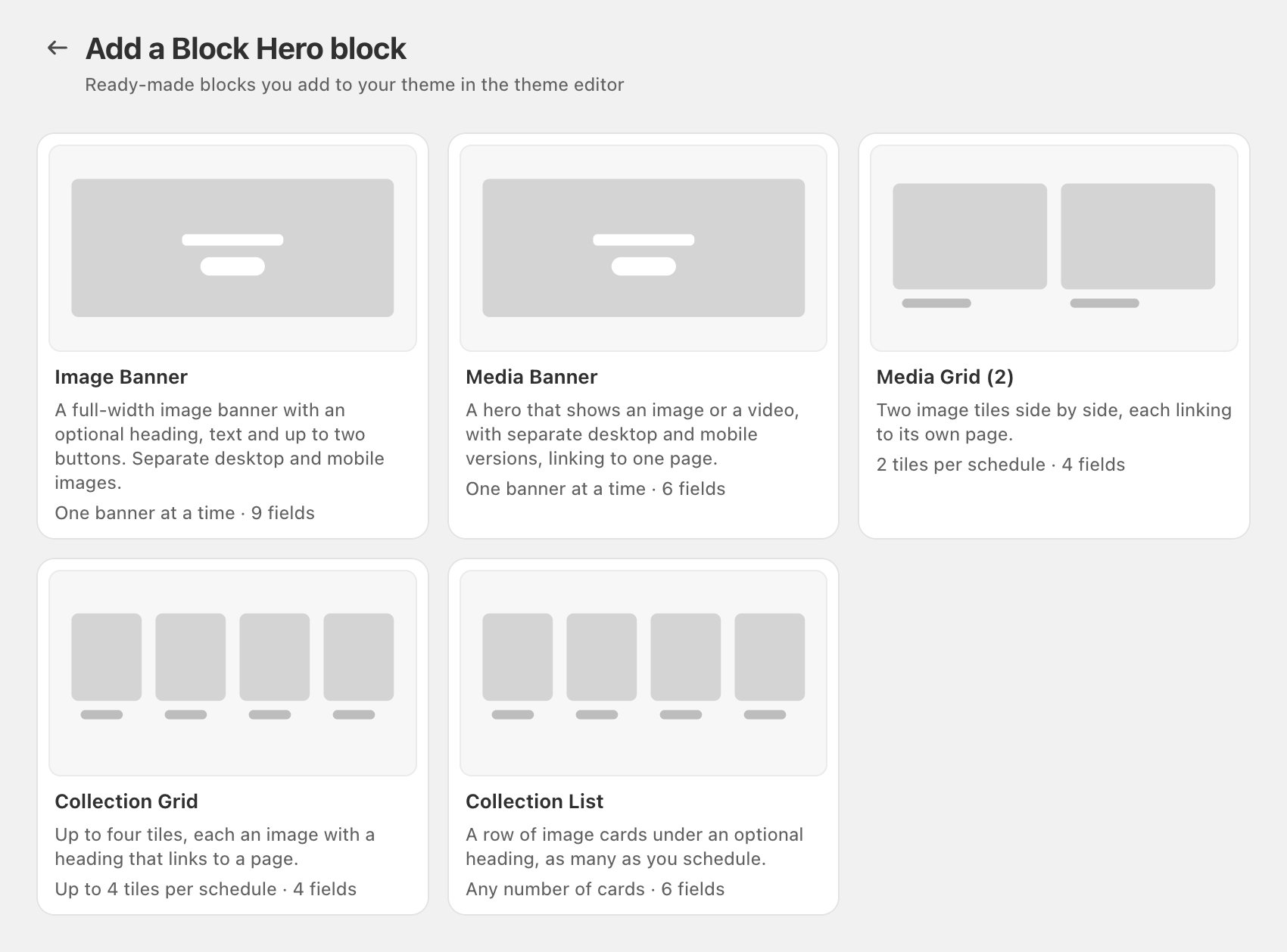
  • Add a Block Hero block: Image Banner, Media Banner, Media Grid (2), Collection Grid or Collection List. You add it in the theme editor.
Create schedule: the 'What do you want to schedule?' card with the Use a theme section and Add a Block Hero block rows
3

Set up the block

Follow the path you picked below. Both end on the block’s page, where you add content.
4

Add content and dates

On the block’s page, add the content and set its Start date and End date, or tick No end date. Then save. See Create a schedule.

If you chose a theme section

  1. Pick the section from the list. Only connected sections without a schedule are listed. If yours isn’t there, click Connect a new section. See Connect a theme section.
  2. To tell it apart from other blocks, tick Add display title and type a Title. This is optional.
  3. Click Save. The block’s page opens.
Create schedule > Theme section: the theme section picker with a section chosen, its Connected badge, and the Save button

If you chose a Block Hero block

  1. Pick the block you want and click Use this block. See Block Hero blocks for what each one shows.
  2. On Create schedule, you can tick Add display title to give the block a Title. Then click Save in the save bar at the top of the page. The block’s page opens.
  3. Add the block to your theme in the theme editor. Click Open theme editor on the block’s page.
Add a Block Hero block: the block gallery with the five Block Hero blocks

The Setup Guide

On a Block Hero block’s page, the Setup Guide walks you through three steps:
  • Create your block
  • Add block to your theme, with an Open theme editor button
  • Create your first content
Steps tick themselves off as you finish them. Once all three are done, click Dismiss Guide. To hide it sooner, open the guide’s menu and choose Dismiss. Once dismissed, it is hidden on every block’s page.
Theme sections don’t show the Setup Guide. They’re already in your theme.