

1
Open Add theme sections
Go to Blocks. Click Add block, then choose Theme section. You can also click Connect section at the bottom of the Theme sections card.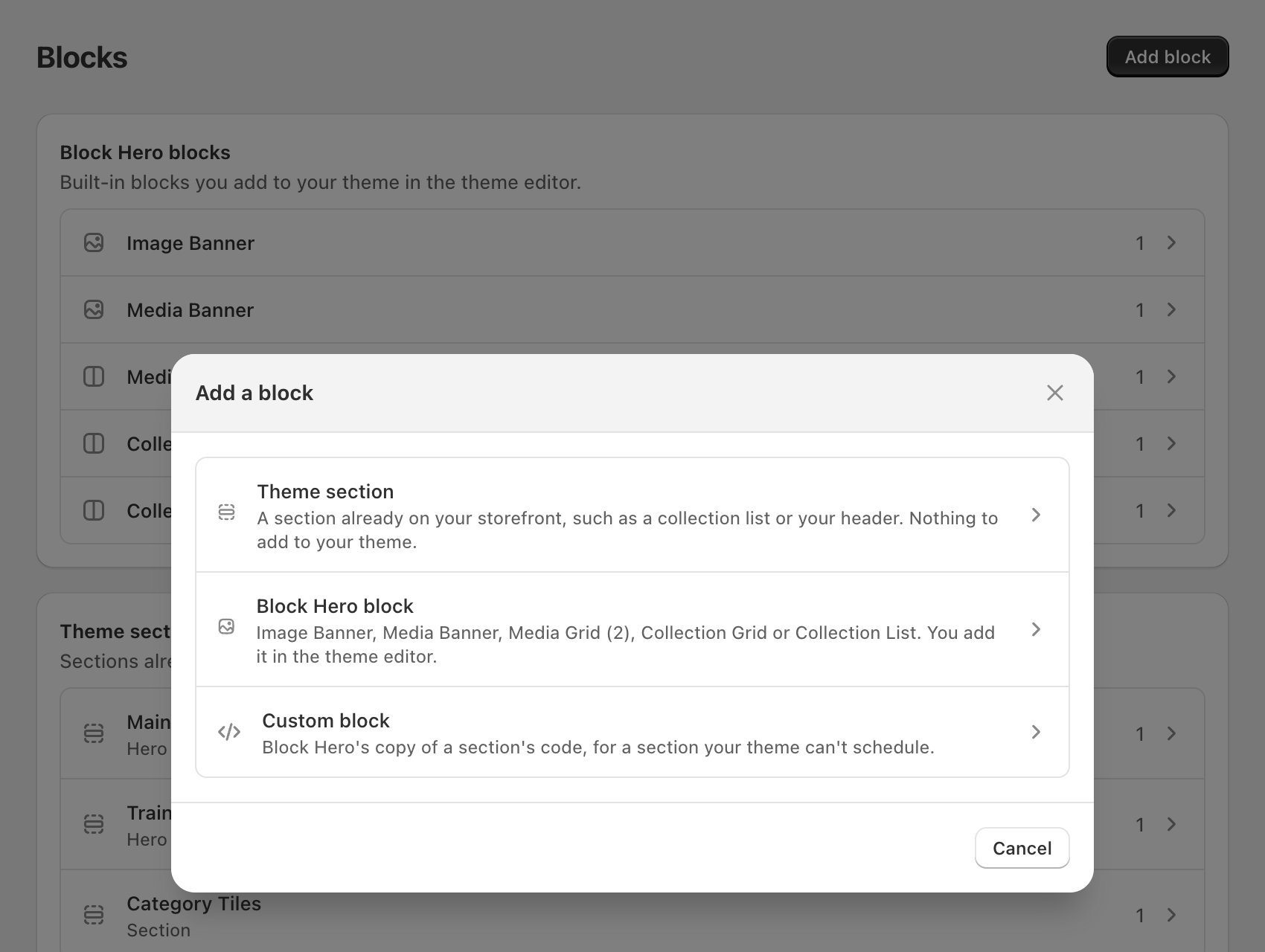
2
Tick the sections to schedule
The Add theme sections page is laid out like your theme editor: one card per page (header, home page, product, collection and so on), with that page’s sections inside.Tick each section you want. Click the arrow next to a section to see which of its blocks and fields Block Hero would schedule.Sections that are already connected sit under Already in Block Hero at the bottom of each page.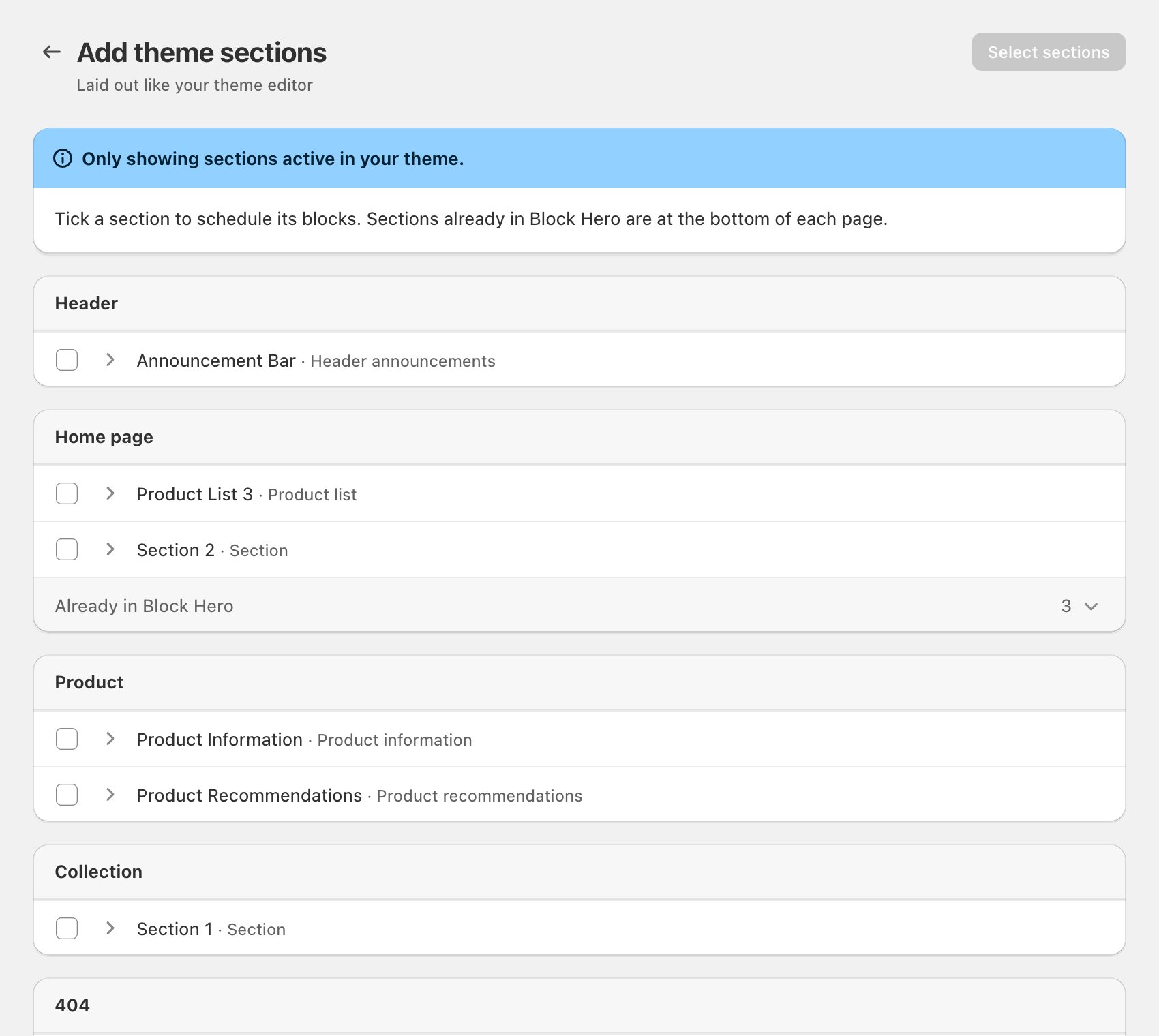
Only sections active in your theme are shown, meaning sections placed on a page of your live theme. If a section isn’t listed, check that it’s on a page of your live theme.
3
Click Review
Click Review 1 section (or Review 2 sections, and so on). Block Hero reads each section again. Nothing is connected yet.
4
Check each section and name your block
The review page (Connect 2 sections, for example) shows a card for each section you picked. Open a card to see: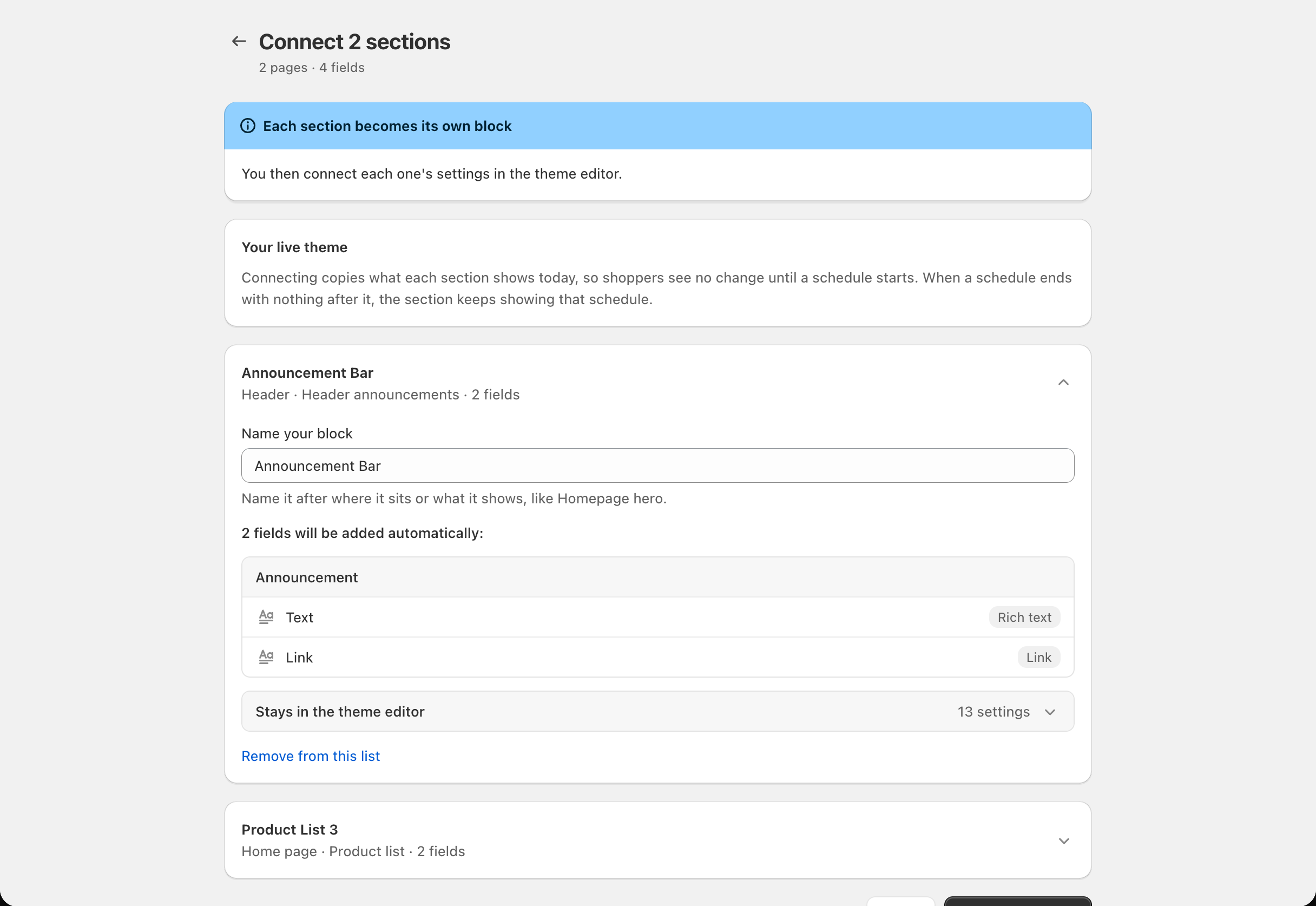
- Name your block: the name you’ll see in Block Hero. It starts as the section’s name. Give it a name that tells you what it’s for.
- The fields that will be added automatically, grouped by card.
- Stays in the theme editor: the settings Block Hero won’t schedule, such as layout and colours.
5
Connect
Click Connect 1 section (or Connect 2 sections, and so on).If you connected one section, its page opens. If you connected several, you go back to Blocks.
Connecting copies what each section shows today
When you connect, Block Hero copies what each section shows on your storefront right now. Shoppers see no change until a schedule starts. When a schedule ends with nothing after it, the section keeps showing that schedule, unless you choose a fallback. See What shows between schedules.Next: link the fields in the theme editor
A new section shows Needs you until you link its fields in the theme editor. This is a one-time step for each section, and your schedules can’t show until it’s done.Link fields in the theme editor
Step-by-step, with a video.
If a section can’t be connected
This section can't be connected
This section can't be connected
An image, collection or product the section shows couldn’t be found in your store. Remove the section from the list, or change it in the theme editor first, then review again.
This section has nothing Block Hero can schedule.
This section has nothing Block Hero can schedule.
The section has no settings Block Hero can schedule, so it can’t be connected.
Some sections may be missing
Some sections may be missing
Your theme has more files than Block Hero could read at once. Click Load again.
Your theme's sections couldn't be loaded
Your theme's sections couldn't be loaded
This is usually brief. Click Try again. If Block Hero asks for permission to read your theme, reopen the app to approve it.