

Your store’s time zone
Every date and time you set is in your store’s time zone, the one set in your Shopify admin. The time zone is shown next to each time you pick, so you can check it before you save.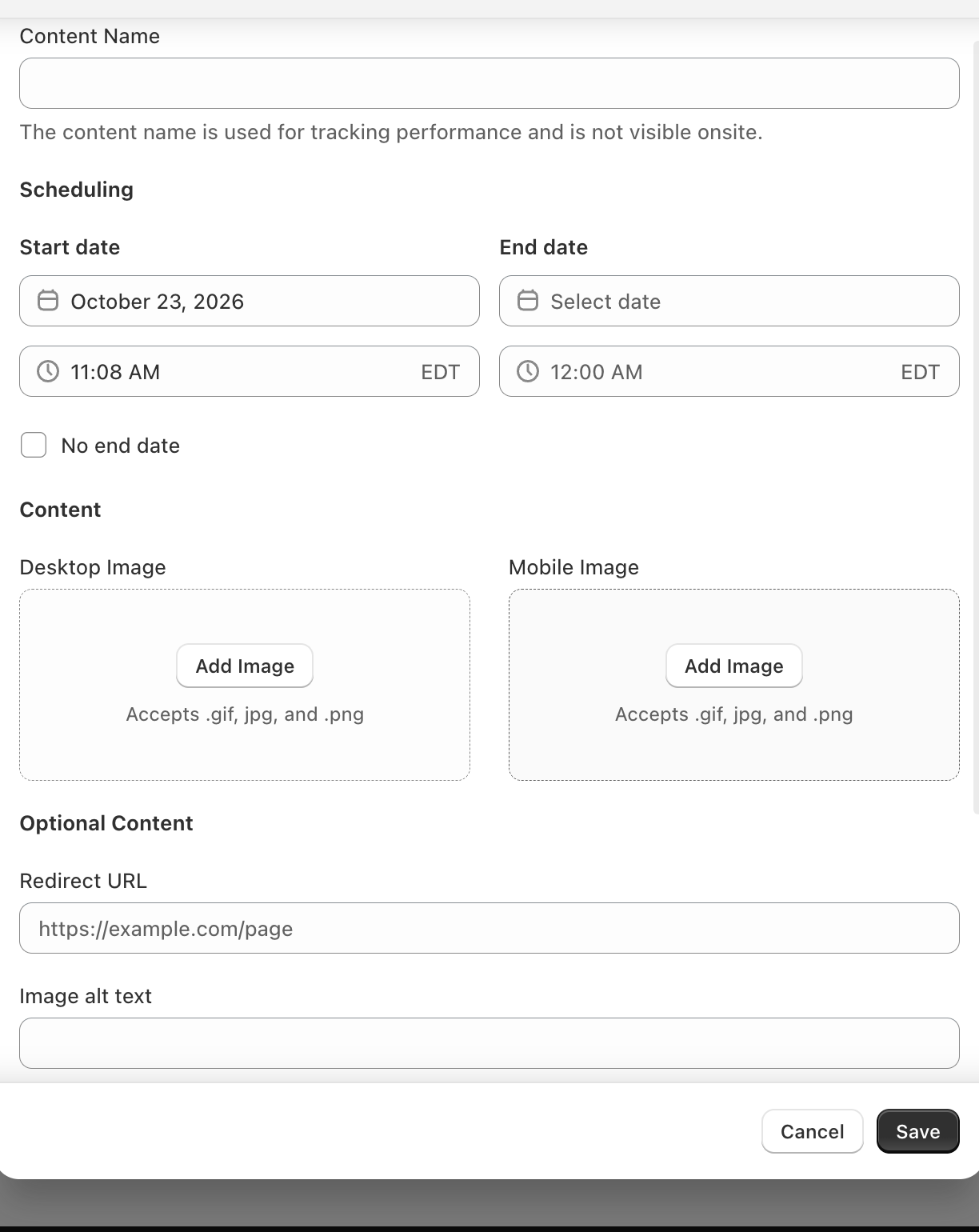
When each kind of block changes
If you edit a theme section’s live schedule, the change usually shows on your store within seconds.
If a change doesn’t reach your store, Block Hero shows Not published on the block and a banner with Try again. See Troubleshooting publishing.
One schedule at a time
A block shows one schedule at a time, so Block Hero won’t save dates that overlap another schedule on the same block. You see These dates overlap another schedule in this block. (or These dates overlap other content in this block. on Image Banner and Media Banner blocks). Schedules can sit end to end: one can start at the exact moment the previous one ends.No end date
Tick No end date to keep content live until you change it. Because nothing can overlap it, you can’t add a schedule to that block that runs into it, whether it starts later or starts earlier and is still running when it begins. To schedule what comes next, edit it and give it an end date first. On Image Banner and Media Banner blocks you see Give ”…” an end date first. It has none, so nothing can be scheduled after it. until you do.When nothing is scheduled
- Block Hero blocks show nothing to shoppers while no content is live. In the theme editor you see a placeholder instead.
- Theme sections keep showing the last schedule, or a fallback you choose. See What shows between schedules.
What happens when…
Things that override the dates
- A disabled block shows nothing, whatever its schedules say. See Turn a block on or off.
- A status set by hand on a piece of content in a Block Hero block beats its dates. See Statuses.