

Not counted yet
Not counted yet
What it meansBlock Hero hasn’t started counting this metric for your store. Hold your pointer over Not counted yet to see why:
- Block Hero starts counting this once its analytics embed is on in your theme. This is for Pageviews, Products viewed, Avg. pages/session, Added to cart, Added-to-cart rate and Reached checkout.
- Block Hero starts counting orders from the first order Shopify confirms for this store. This is for Orders, Revenue, Conversion rate and AOV.
Since a date, for example Since Oct 4
Since a date, for example Since Oct 4
What it meansThe date range you picked starts before Block Hero began counting this metric for your store. Only the days from that date are counted. Hold your pointer over the note to read, for example, Block Hero started counting Added to cart on Oct 4. Earlier days in this range aren’t counted. For a rate, only the days from that date are used.Under a table or report, one blue note sums this up, such as Block Hero started counting Added to cart from Oct 4. Rates use those days only.What to doNothing. Pick a date range that starts on or after that date to compare like with like. See When counting starts.
Shimmering grey bars
Shimmering grey bars
What it meansThe numbers are still loading. Impressions and clicks often appear first, and the other metrics fill in a moment later.What to doWait for them to load. They aren’t zeros.
The analytics app embed is off
Block Hero counts impressions and clicks on its own app blocks. Everything that happens after a click, like pages viewed and products added to cart, needs the Block Hero analytics app embed turned on in your theme. Impressions and clicks on theme sections you connected also need it. While it’s off, the Scheduler shows a Turn on Block Hero analytics banner. Click Open theme editor to go straight to App embeds, switch it on and save, then click Check again. The banner goes once the embed is on.1
Open the theme editor
In your Shopify admin, go to Online Store > Themes and click Customize on your live theme.
2
Open App embeds
Click the App embeds icon in the left sidebar.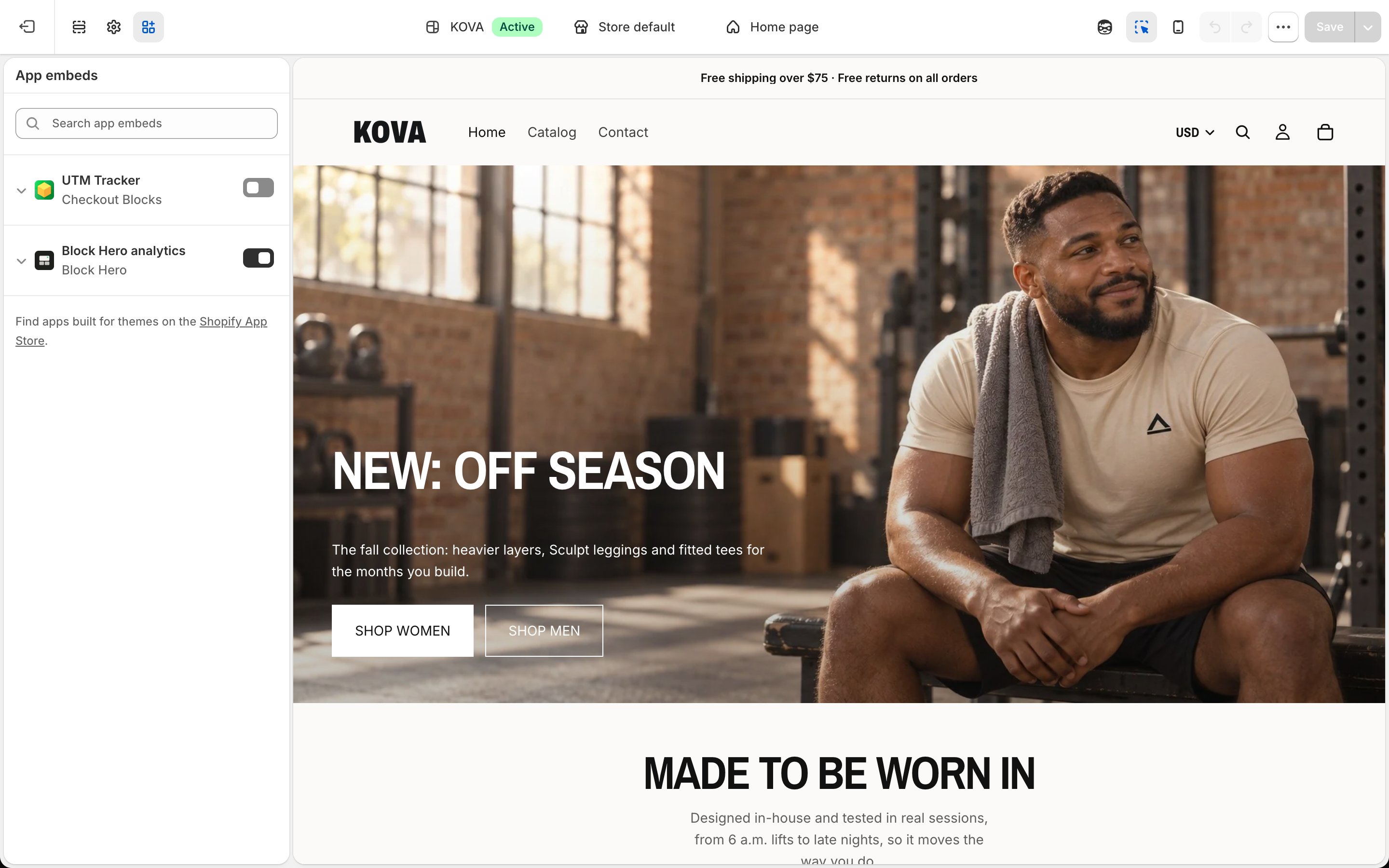
3
Turn on Block Hero analytics
Switch on Block Hero analytics, then click Save.
Block Hero only counts a shopper’s activity when they’ve allowed analytics on your store, the same way Shopify’s own analytics work. See Compared to Shopify.