

Start the disconnect
1
Click Delete block
Open the section’s page from Blocks and click Delete block at the bottom. You can also click Delete block on the block page in the Scheduler, which takes you to the same place.
2
Choose what the section keeps showing
In the Disconnect window, under What should the section keep showing?, pick one: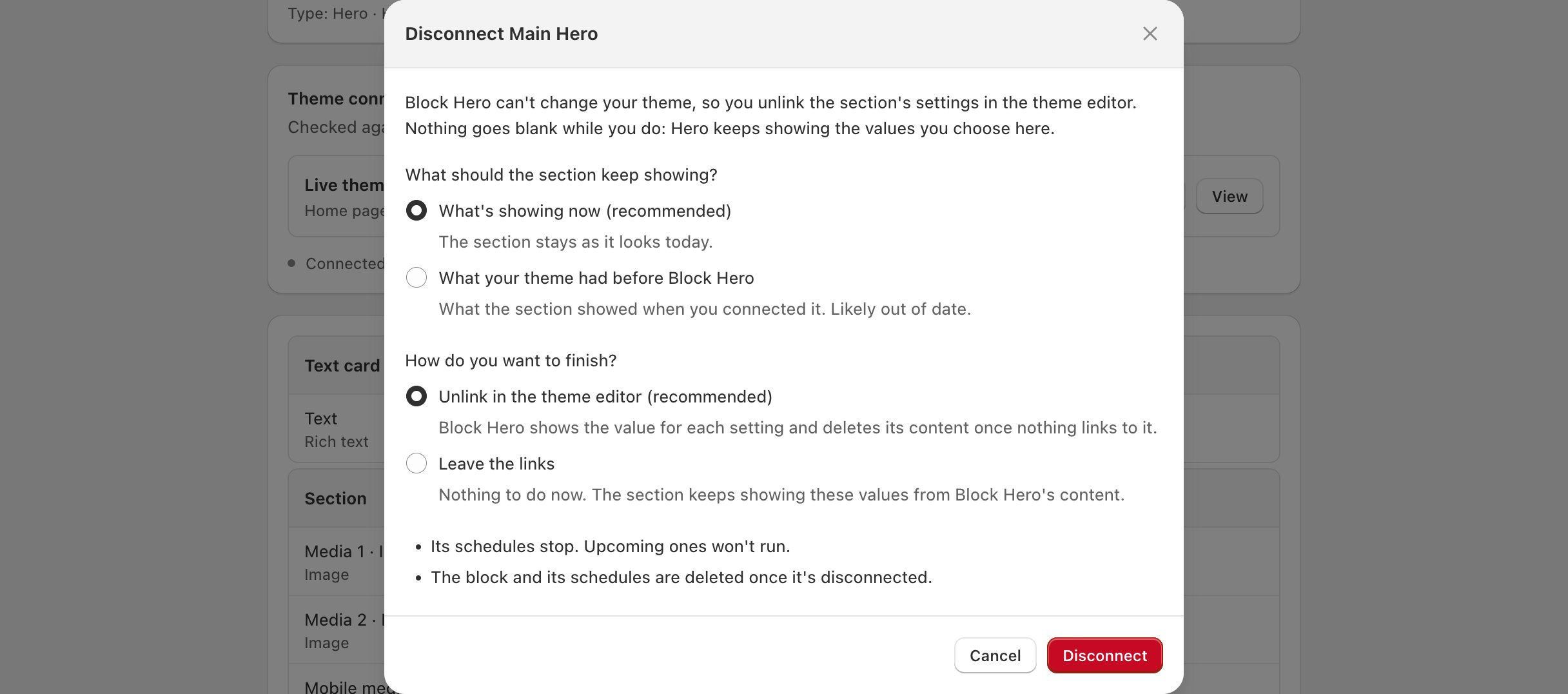
3
Choose how to finish
Under How do you want to finish?, pick one:
- Unlink in the theme editor (recommended): you remove the links in the theme editor with a checklist. Block Hero shows the value for each setting and deletes its content once nothing links to it.
- Leave the links: nothing to do now. The block is deleted straight away and the section keeps showing these values from Block Hero’s content.
4
Click Disconnect
Click Disconnect. Scheduling stops.
Unlink the settings in the theme editor
If you chose Unlink in the theme editor, the section’s page shows Disconnecting and a checklist called Unlink in the theme editor, with a count of the cards unlinked so far. The section keeps showing the values you chose until you unlink it.1
Open a card on the checklist
Click a card on the checklist to see its settings. Each setting shows the action to take in the theme editor and the value to use, which is what the section shows now:
2
Make the changes in the theme editor
Click Open theme editor. Open each card in the section and make the changes on the checklist. Then click Save in the theme editor.If the checklist has a Switched off row, delete the source from those settings too, then set them by hand.
3
Check
Back in Block Hero, click Check. Cards that are done get a tick. When nothing in your live theme links to Block Hero any more, Block Hero deletes its content and the block, and you’ll see that the section is disconnected.
If you chose Leave the links
The block is deleted straight away. The section keeps showing the values you chose, from Block Hero’s content, and the links stay in your theme. If the block couldn’t be deleted, the section’s page shows Scheduling has stopped. Delete the block to finish disconnecting. Click Delete block to finish.If something goes wrong
Block Hero doesn't have what your theme showed before this block. Choose another option.
Block Hero doesn't have what your theme showed before this block. Choose another option.
Pick What’s showing now (recommended) or Your fallback instead.
Block Hero couldn't finish preparing the steps.
Block Hero couldn't finish preparing the steps.
The checklist couldn’t be built. Click Try again.
The theme couldn't be checked. Try again in a moment.
The theme couldn't be checked. Try again in a moment.
Wait a moment, then click Check again.