

What Block Hero schedules and what stays in the theme editor
Each section has two kinds of settings:
Block Hero can schedule these kinds of settings, the ones the theme editor lets you connect to a dynamic source:
Colour settings start switched off. Switch them on if you want to schedule them.
Your theme section’s page lists both. The fields Block Hero schedules are at the top. The settings you keep editing in the theme editor are under Stays in the theme editor. See Choose which fields to schedule.
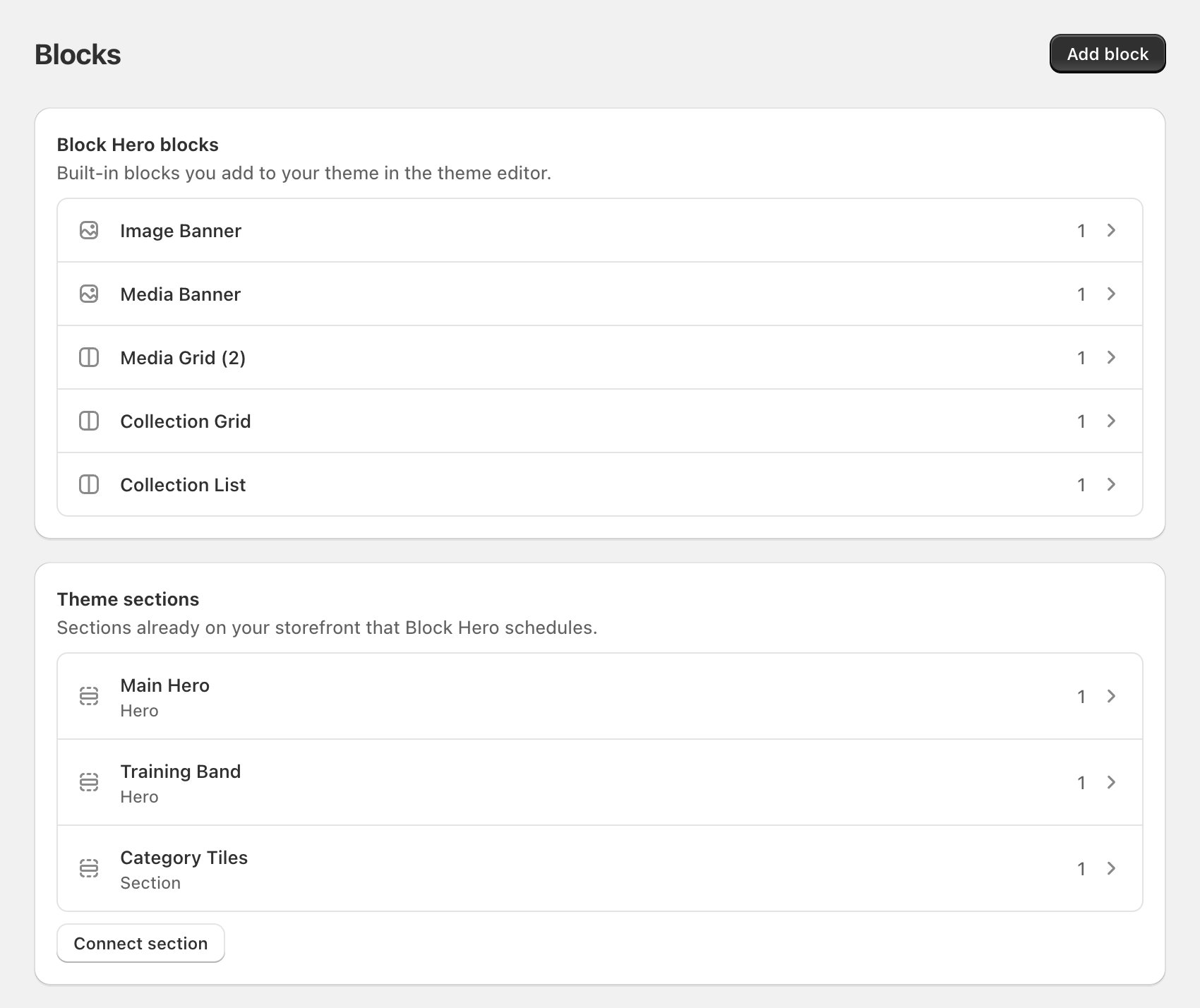
Where to find your theme sections
Go to Blocks. The Theme sections card lists every section you have connected. Click one to open its page, where you manage the link to your theme, its fields and what it shows between schedules. You schedule a theme section’s content the same way as any other block, from the Scheduler. See Create a schedule.How a theme section looks on its block page
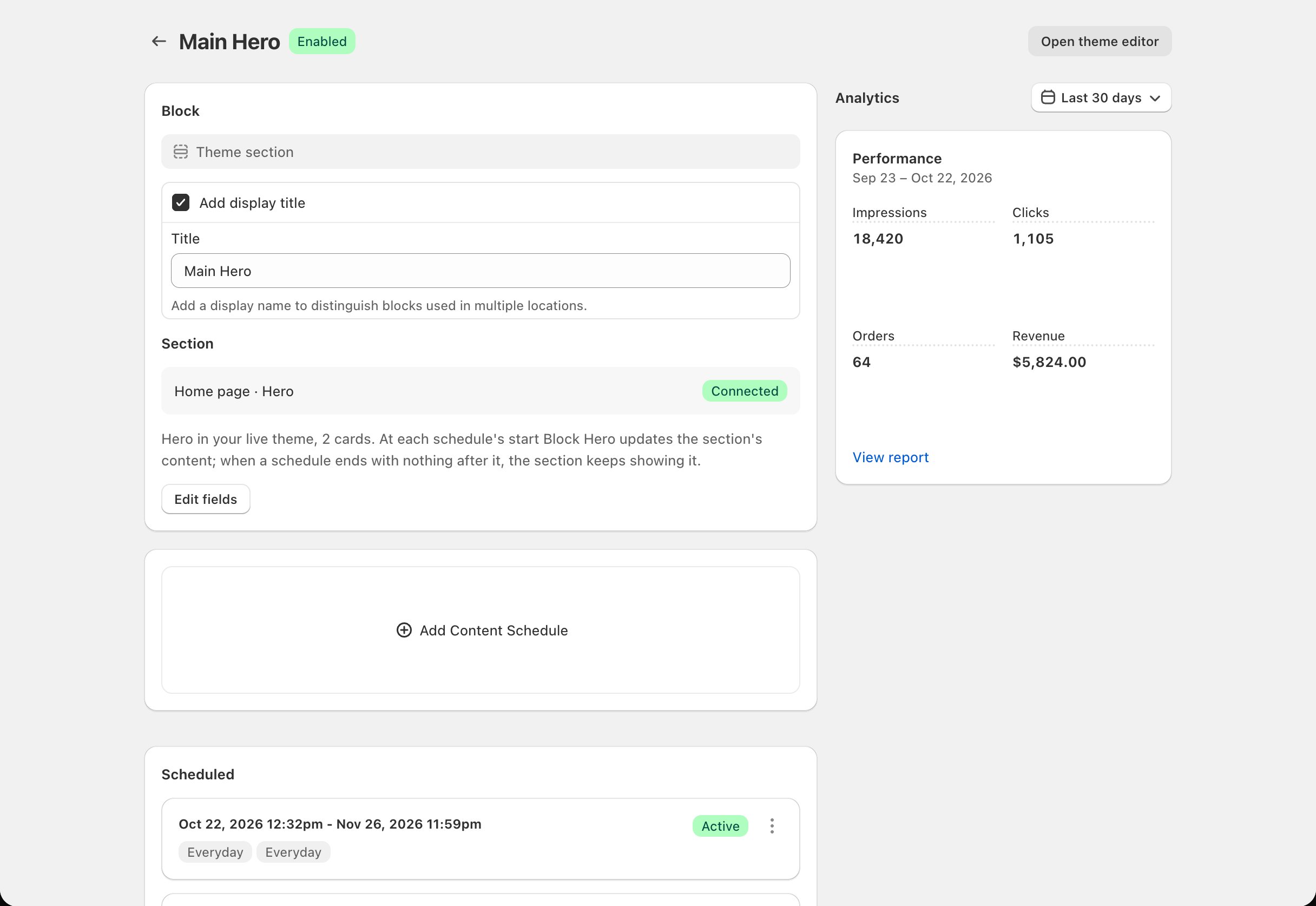
On the block page in the Scheduler:- The Block card shows Theme section as the block type. Under Section you see the page and section name, its status, and an Edit fields button that opens the theme section’s page.
- The schedule card has one row per card in the section. A card is one of the blocks inside the section, such as one collection in a collection list. If the section mixes kinds of blocks, Block Hero schedules the kind it uses most; the others stay in the theme editor. Click Edit (or Add) on a row to set that card’s content.
- A field you leave empty in a schedule shows what your theme had when you connected the section. A field already filled from your theme says Imported from your theme. Edit it to change it for this schedule.
- If the section has its own heading or text above the cards, it gets a Section Header row at the top of the list. It always stays first.
Example data
At each schedule’s start, Block Hero updates the section’s content. When a schedule ends with nothing after it, the section keeps showing it, or shows a fallback if you chose one. See What shows between schedules.
Statuses
A newly connected section shows Needs you until you link its fields in the theme editor.
Get started
Connect a section
Pick sections from your live theme.
Link in the theme editor
The one-time step that makes schedules show.