

Edit content
1
Open the content
On the block’s page, click the content’s name. In a schedule, click the content’s badge. The content’s page opens.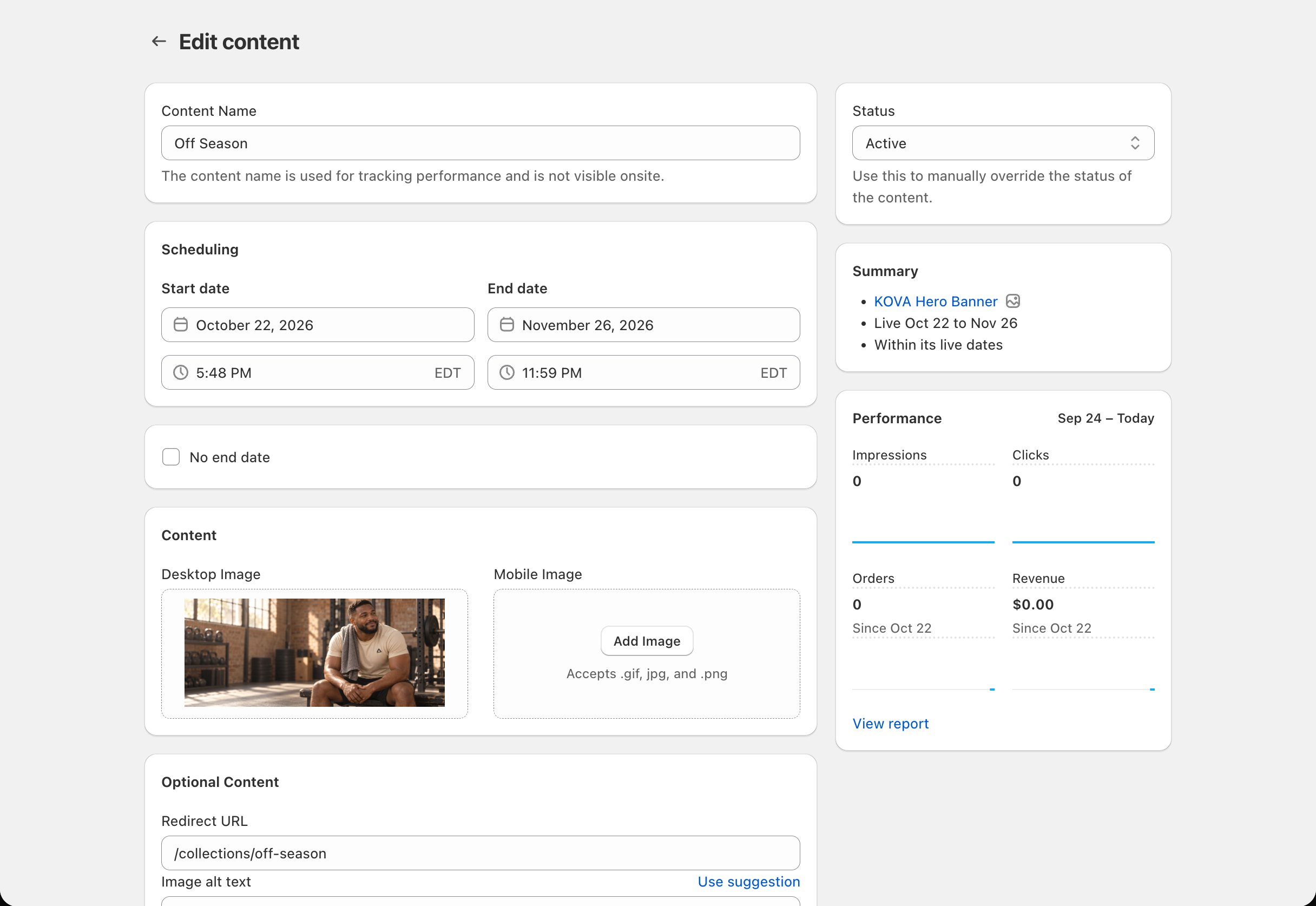
2
Make your changes and save
Change what you need and click Save.
Edit a schedule
On Media Grid, Collection Grid, Collection List and theme section blocks, a schedule’s dates and its content are edited together.1
Choose Edit
On the block’s page, open the schedule’s menu and choose Edit. The schedule opens at the top of the page and shows Editing: with its dates.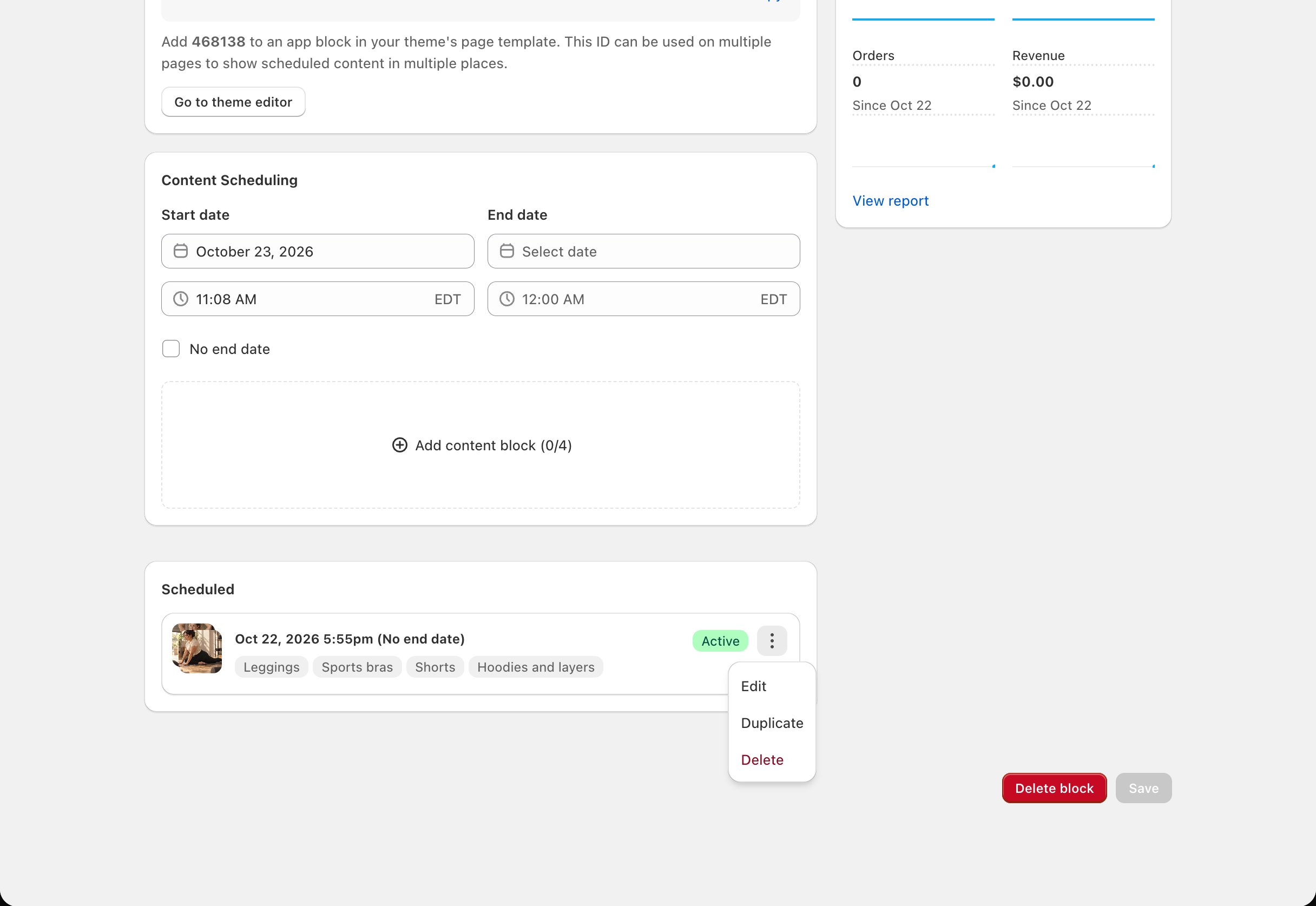
2
Change the dates or content
Change the Start date, End date or content. To stop without changing anything, click Cancel.
3
Save
Click Save in the save bar at the top of the page.
Changing something that’s live
Saving a change to live content or a live schedule updates your store straight away. You don’t need to wait for the next schedule.- Block Hero blocks: Block Hero publishes the change when you save.
- Theme sections: the change usually shows within seconds.
Restore something that has ended
Ended content and schedules are in the Inactive card at the bottom of the block’s page. Click the arrow to open it. Image Banner and Media Banner: open the content’s menu and choose Edit dates. The content opens. Give it new dates and click Save. Media Grid, Collection Grid, Collection List and theme sections: open the schedule’s menu and choose Run again. A copy opens at the top of the page with the same content, starting now with no end date. Set the dates you want and click Save in the save bar. The old schedule stays in Inactive.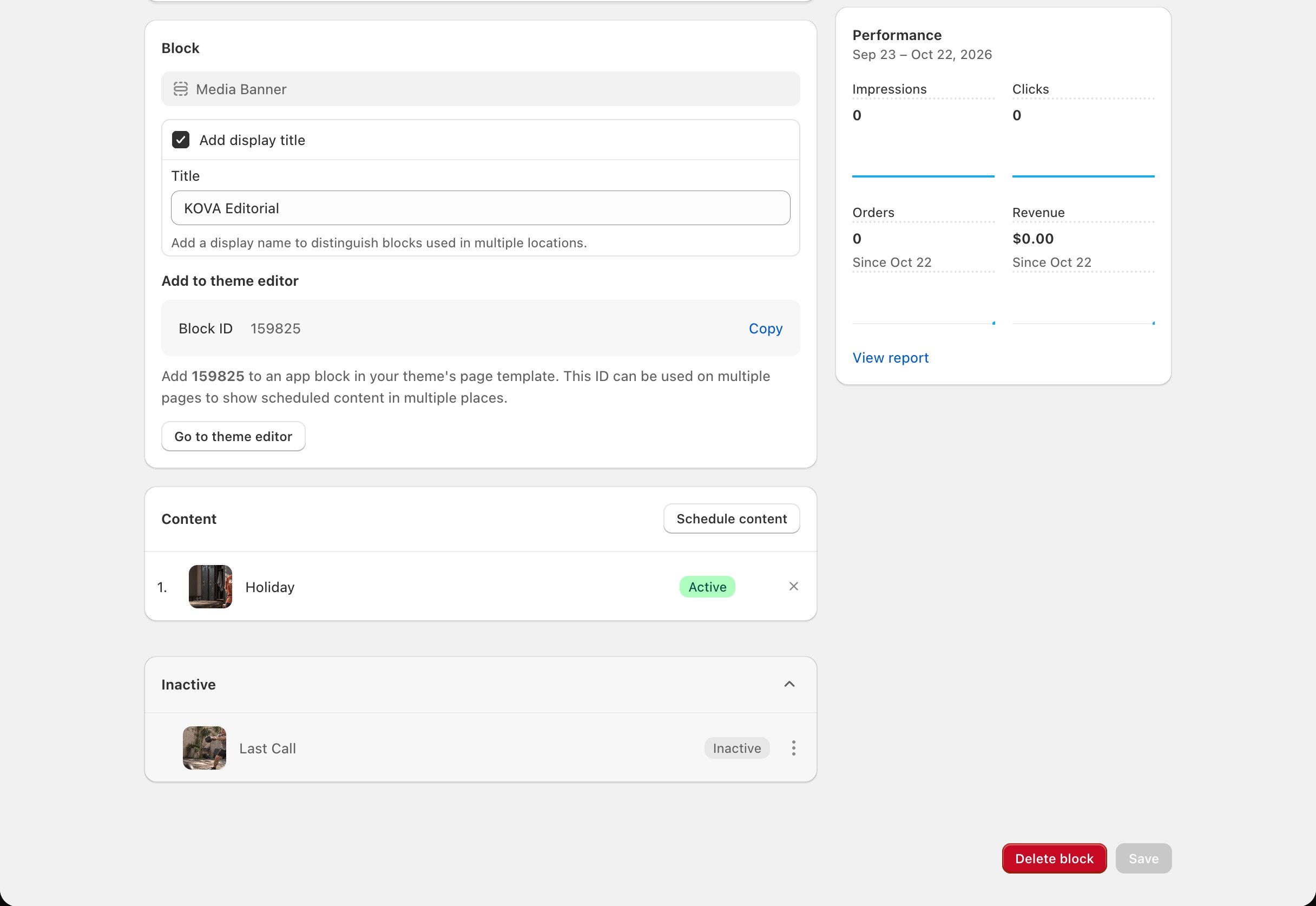
Delete content
- From the block’s page: on Image Banner and Media Banner blocks, click the X on the content’s row. For content in Inactive, open its menu and choose Delete.
- From the content’s page: on Block Hero blocks, click Delete content.
Delete a schedule
Open the schedule’s menu and choose Delete. In the Delete schedule window, click Delete schedule to confirm, or Cancel to keep it.
Delete a block
Deleting a block also deletes all of its schedules and content. This can’t be undone.1
Choose Delete
On the Scheduler, open the block’s … menu and choose Delete. Or open the block and click Delete block at the bottom of its page.
2
Confirm
Click Delete block.
Theme section blocks have no Delete in the Scheduler menu. Delete block on a theme section’s page takes you to disconnect it, which puts your theme’s own content back first. See Disconnect a theme section.